The Operations Dashboard is the first page you see in the Mays web app. It shows every checklist running today and how far along it is, what your team has just completed, and — if Square is connected — today's sales.
Click Dashboard at the top of the sidebar to come back to it. Admins and managers have it; employees use the phone app instead.
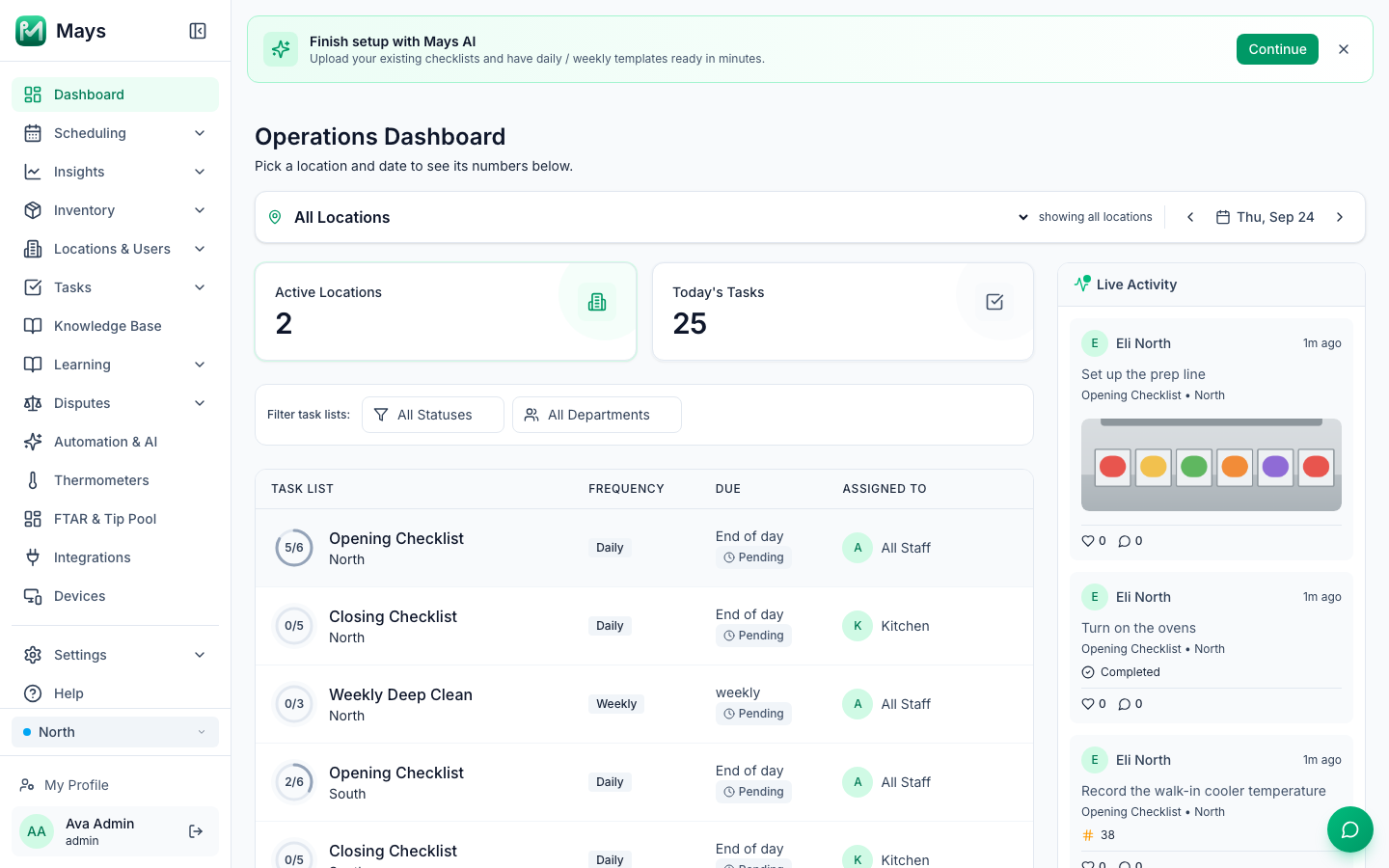
Pick a location and a day
The bar at the top sets what the page shows:
- Location: All Locations, or one location. Admins see every location; managers see the ones they're assigned to. This picker is separate from the location switcher in the sidebar.
- Day: use ‹ and › to step back and forward a day. Today jumps back to today.
The page always opens on today and All Locations.
The cards
Card | What it counts |
|---|---|
Active Locations | Your active locations. |
Today's Tasks | The tasks due on the day you picked. A task given to three people counts three times. |
Square sales today | Only if Square is connected: the total of the day's completed Square payments, the number of payments and when it last synced. The day runs midnight to midnight in each location's own time zone (see Add and edit locations), so an evening sale counts toward today at that location. With All Locations, each location's sales are counted on its own local day. When you pick another day, the card names it (for example Square sales · Sat, Oct 3). Click the refresh button to pull the latest; with All Locations picked, Show per-location breakdown splits it by location. |
Today's checklists
Each row is one checklist at one location:
- Task List — the ring shows how many of its tasks are done (for example 5/6), with the checklist's name and location.
- Frequency — Daily, Weekly, Monthly or Quarterly.
- Due — End of day for daily checklists, and a status tag.
- Assigned To — All Staff, a department, or the first person it's assigned to (+2 more for the rest).
Use Filter task lists: to show one department, or checklists with a particular status. The progress ring is the thing to watch: the status tag under Due normally stays Pending.
Click a row to open the checklist: every task in its groups, each answer (photos in full size), and Completed by (name) · (time) — or No response yet. Back to Dashboard returns you here.
To send work back, reject the individual task — see Reviewing and rejecting completed tasks.
Live Activity
On the right, Live Activity shows the five most recent tasks completed in the last seven days at the location you picked, and refreshes by itself every 30 seconds. Each shows who did it (the person who submitted the answer, even when the task was assigned to someone else), when, the task and checklist, and the answer. A custom-form task shows how many fields were answered (for example Form submitted · 3 answers); open it to see the answers. An inventory count shows how many items were counted and the total, rounded to two decimals (for example 5 items counted (214.42 units)). If the person left a note when completing the task, it shows under the answer or photo; a long note is cut to its first three lines — open the task to read all of it. Click a photo to enlarge it.
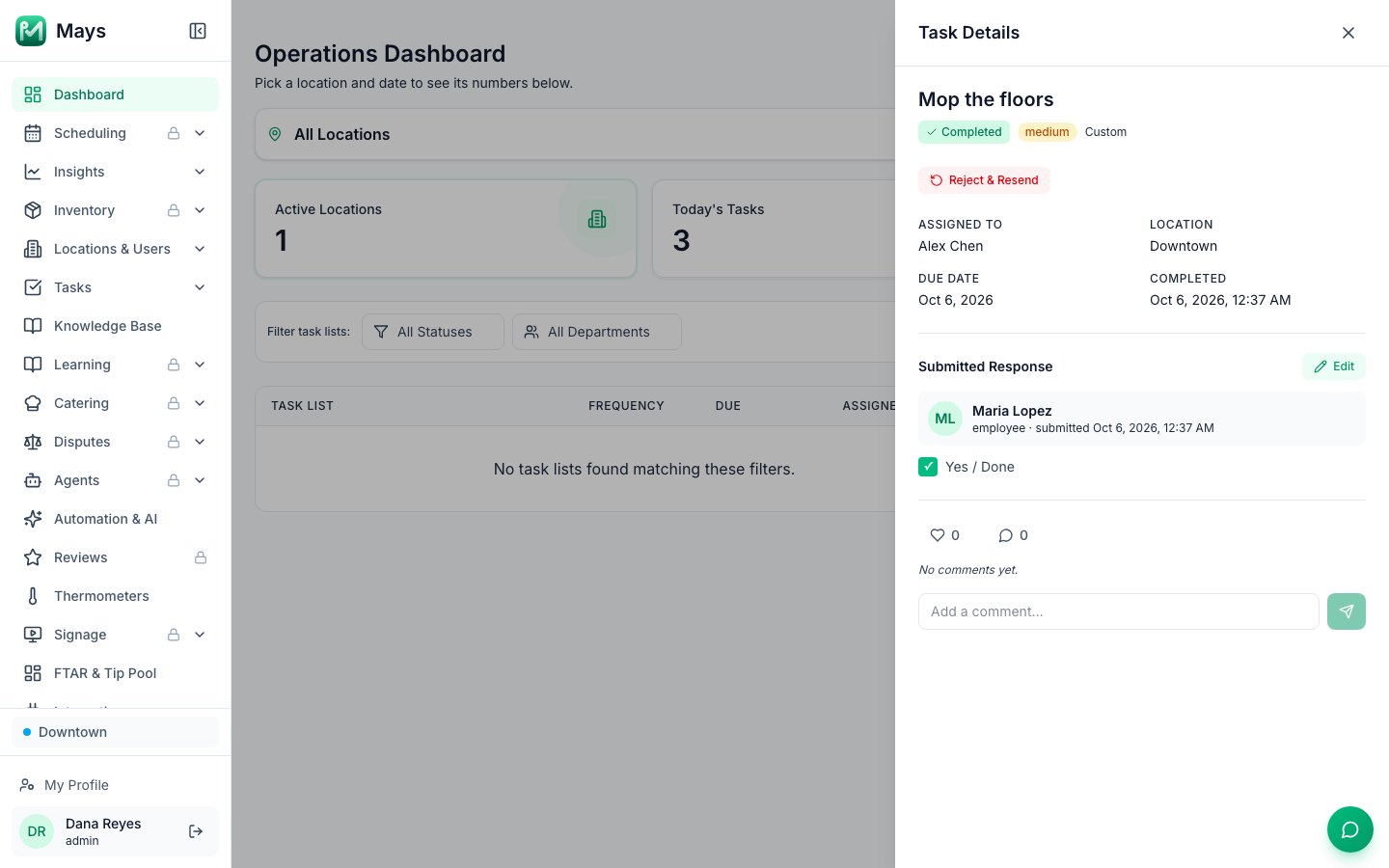
- Click a task to open its Task Details: the full answer, who it was assigned to and who submitted it, its history and comments, and Reject & Resend. This is the same panel as on Tasks → Tasks, so you need access to the Tasks page; without it, the items don't open.
- Click the heart to like it and the speech bubble to read and add comments (Reply to …). The person sees your like and comment in the app's History tab — see The Activity feed.
- For the full list, use Tasks → Tasks.
Good to know
- Managers with more than one location: pick a location in the bar to see its checklists and activity.
- A manager who isn't assigned to any location sees the dashboard with zeros and no checklists until an admin adds them to one — see Location access for managers.
- Numbers on the cards use your browser's number format (for example 1,234 in the US).
- Finish setup with Mays AI: admins who skipped the setup assistant see this banner at the top. Continue opens the assistant again, and ✕ hides the banner in that browser. Otherwise it goes away once setup is finished, or 30 days after it was skipped. See Set up faster with the AI setup assistant.
- The round button in the bottom-right corner is Mays AI — ask it things like "How many tasks were completed today?". See Asking Mays AI on the web.
- New checklists show up here the day after you create their template — see Scheduling and assigning checklists.