A template is a checklist you build once — "Opening Checklist", "Weekly Deep Clean" — and Mays turns into your team's task list in the app, on the days and at the locations you choose.
Templates live on the web, under Tasks → Templates (the page is called Task Templates). Admins and managers can create them; employees only see the tasks they produce in the app. Checklists are part of every plan.
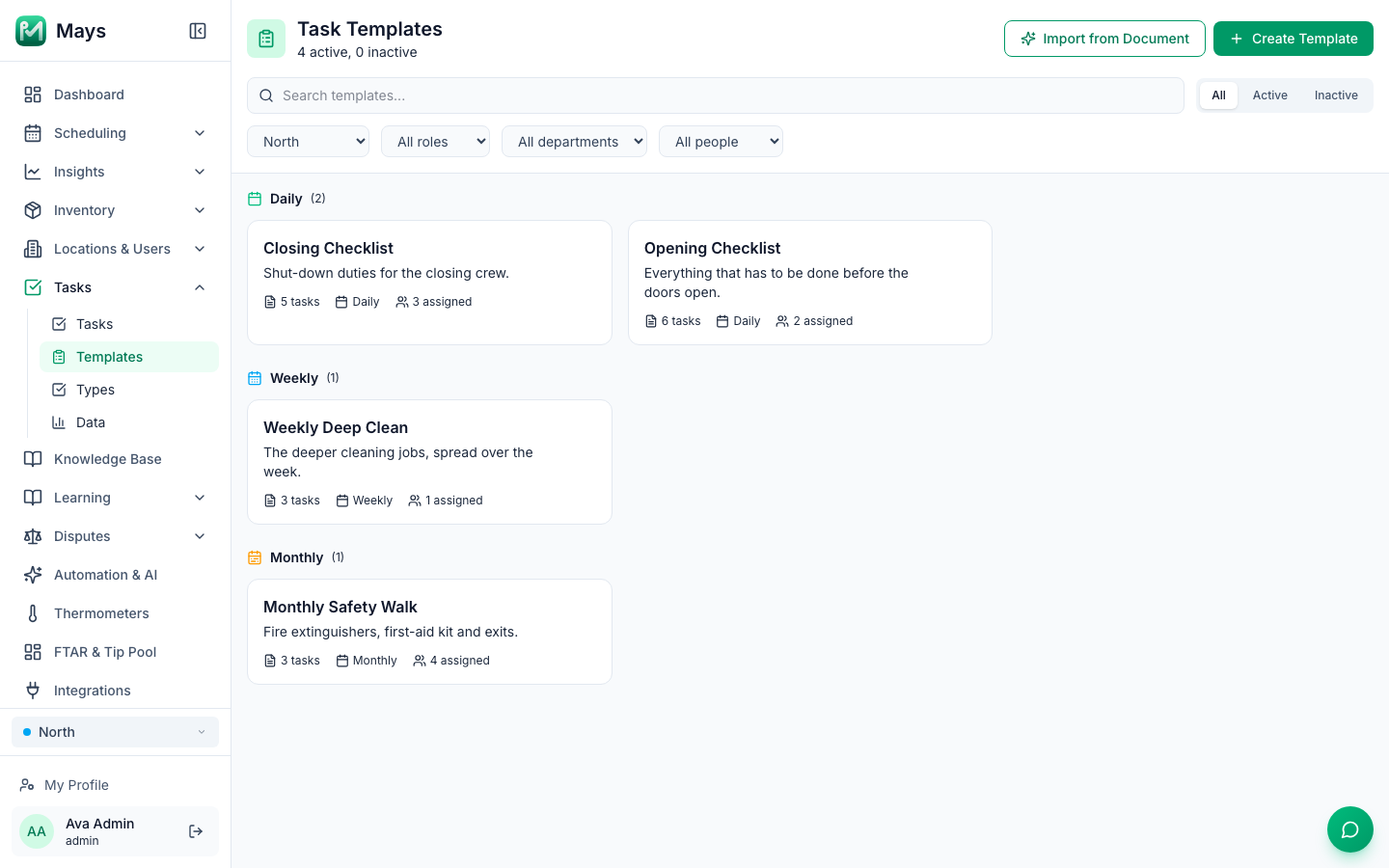
Create a template
- Go to Tasks → Templates and click Create Template.
- Type a name — for example Opening Checklist — and click Continue.
- On the Tasks tab, click Add Task Group. A group called New Group appears; click its name and rename it, for example Front of House.
- In the group, type a task into Add a task (press Enter) and press Enter. Keep typing to add the next one.
- Next to each task, click the answer type (it starts as Checkbox) to change how staff complete it — see the table below.
- Add more groups the same way, for example Kitchen.
- Set when it runs and who does it on the Settings and Assignments tabs — see Scheduling and assigning checklists. A template with no location never produces any tasks.
- Click Create Template. If something can't be saved, Mays says why in a message at the top right, and your template stays open so you can fix it.
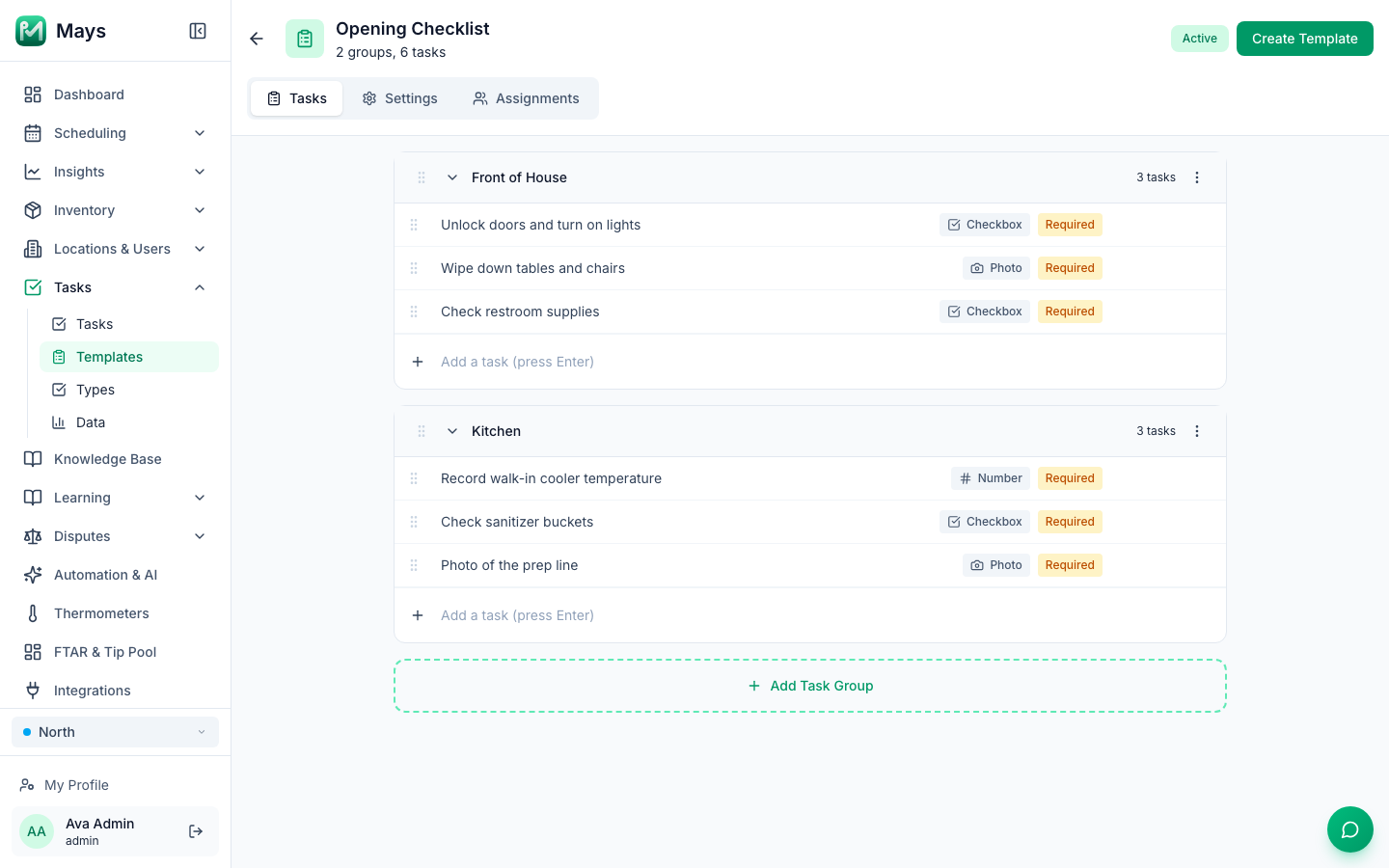
Answer types
For each type's settings and where it can be used, see Task answer types.
Type | What staff do in the app |
|---|---|
Checkbox | Tap once to mark it done. |
Photo | Take a photo with the phone's camera. Photos can be checked by AI — see AI photo verification. |
Number | Enter a number, such as a temperature. |
GPS | Record where they are when they do it. |
Multiple Choice | Pick one of the Options you add in the task's settings. |
Text | Type a short answer. |
Inventory Count | Count a list of items. Click the items button on the task (for example 0 items) to list them, each with a Min Stock and Case Size. See Inventory-count and restock tasks. |
Custom form | Fill in a form you built under Tasks → Types. Only people who can see Types (admins, by default) can pick it, and you choose which form under Task Type. See Building custom forms. |
Edit a task
- Rename: click the task's name, type, and press Enter.
- Required or Optional: click the Required tag to switch it.
- More settings: hover over the task and click the pencil. The Edit Task window has a Description, Instructions, the answer type and its options, Priority, Required, and Assign to person (optional), which gives that one task to a specific person — see Scheduling and assigning checklists.
- Reorder: drag the handle on the left, or use the up and down arrows that appear when you hover.
- Delete: hover and click the trash icon.
Groups have a ⋯ menu with Rename, Move Up, Move Down and Delete Group. Deleting a group that still has tasks asks first, because its tasks go with it; an empty group is removed straight away. A group with no tasks isn't saved.
Changes in the Edit Task window only stick once you click Save Changes (or Create Template) at the top of the page. If you leave with unsaved changes, Mays asks before throwing them away.
Turn a template off, copy it or delete it
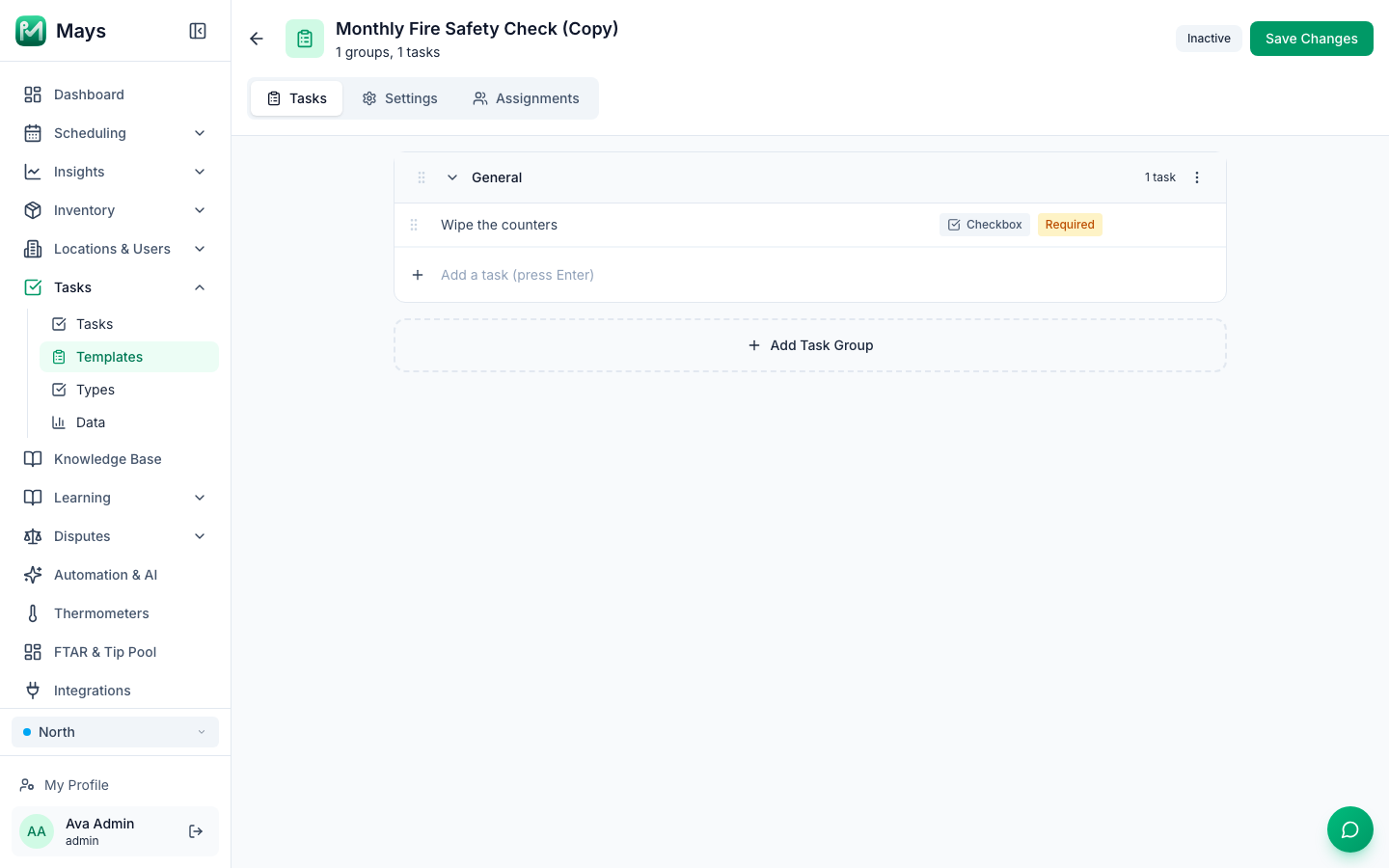
- Active / Inactive: the button next to Save Changes. An inactive template stops producing tasks from the next day; tasks already on today's list stay.
- Duplicate: on the Task Templates page, hover over a template and click ⋮ → Duplicate. The copy is called … (Copy) and opens straight away. It starts Inactive, with the same tasks, schedule and assignment, so your team doesn't get the checklist twice. Change what you need, click Inactive to switch it to Active, then click Save Changes.
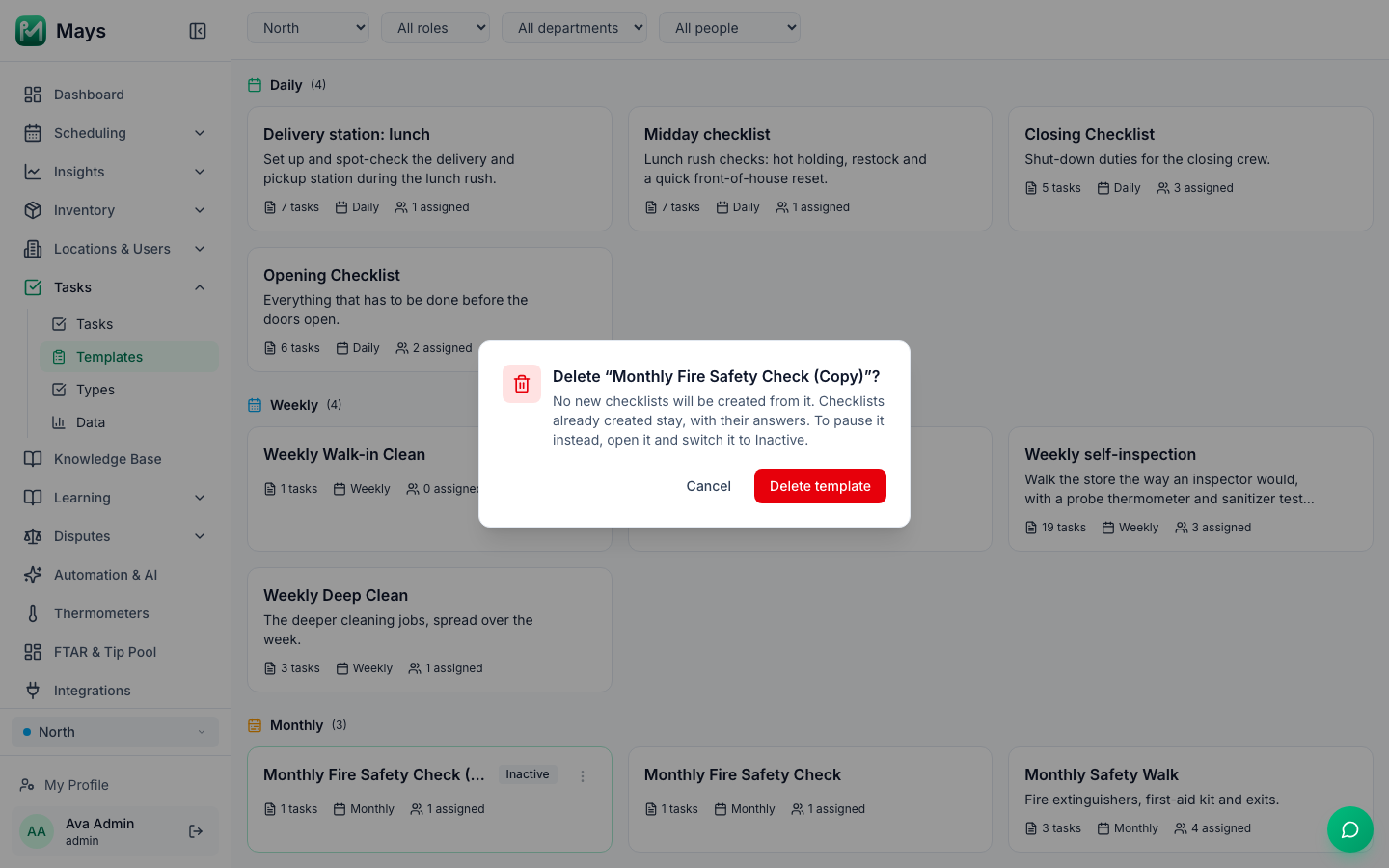
- Delete: ⋮ → Delete. Mays asks first and names the template; click Delete template to confirm, or Cancel. No new checklists are created from a deleted template. Tasks that were already created stay, with their answers. To stop a template for a while instead, switch it to Inactive.
Import checklists you already have
Admins see Import from Document on the Task Templates page: upload the checklists you already use and Mays AI drafts the templates for you to review. It uses AI credits. See Set up faster with the AI setup assistant.
Who can do what
- Admins can create and edit any template.
- Managers can create templates for the locations they're assigned to. A template that runs at more than one location opens read-only for them; they can click Duplicate to make their own copy for their locations.
- Templates are made on the web. The apps show the tasks they produce, not the templates.
Good to know
- Changes apply from the next day. Today's list keeps the tasks it was created with; a new template, a new task or an edit shows up in the next day's checklists. A task you delete also disappears from today's list if nobody has done it yet.
- In the app, groups are sorted alphabetically (with one-off tasks first), not in the order you arrange them here.
- Description, Instructions and Priority from the Edit Task window are saved with the template and show on the task in the app. Empty a box to remove its text.
- The template's own Description (on the Settings tab) is kept and shows on its card on the Task Templates page.