Your checklist for the day is in the Tasks tab of the Mays app, under My Tasks. Tick off the simple ones with one tap, open the others to take a photo or enter a value, and your manager sees it straight away.
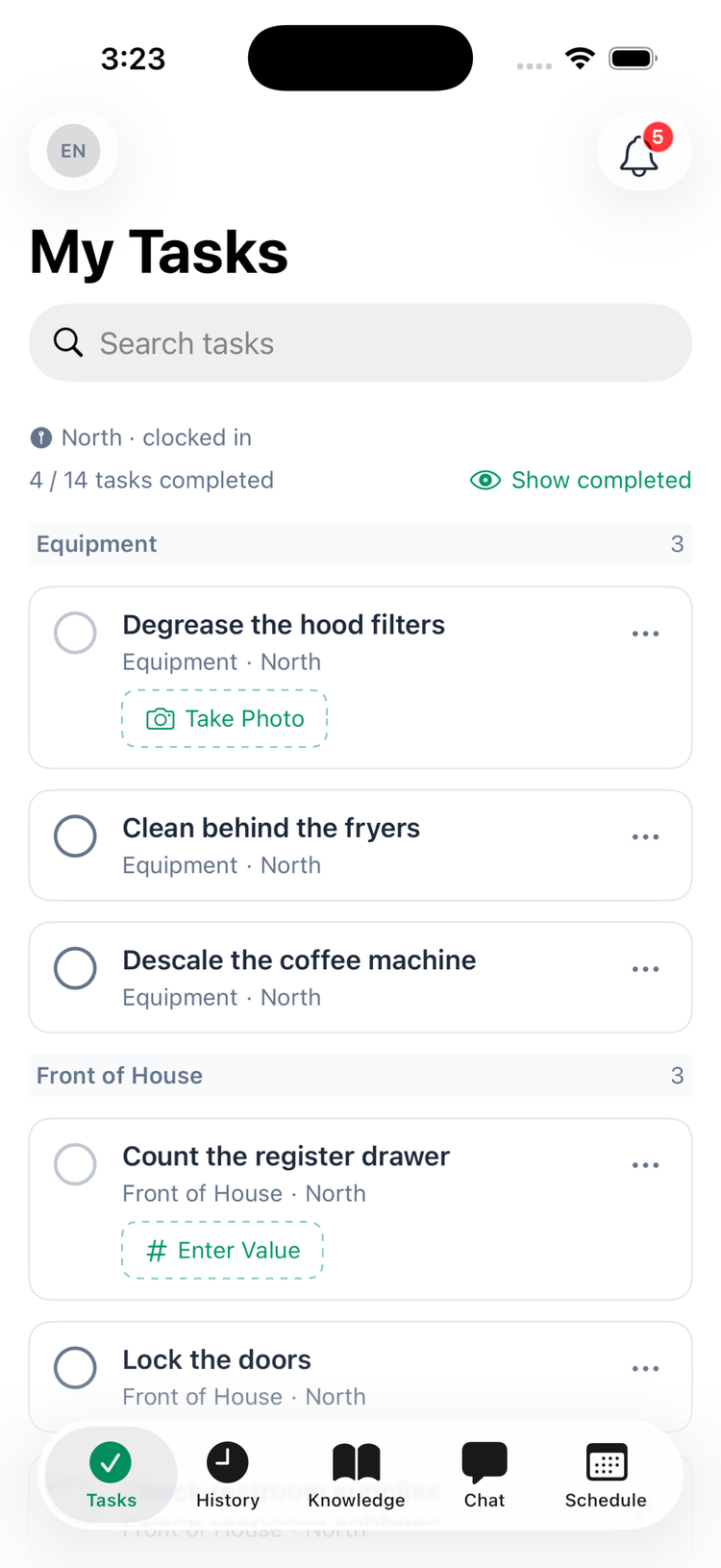
What's on your list
- Tasks are grouped by the section they belong to in the checklist (such as Kitchen or Front of House). Each shows its section and location underneath.
- The bar at the top shows how much of the list is done — for example 4 / 14 tasks completed (shared tasks count whoever finished them). Finished tasks are hidden; tap Show completed to see them (Hide completed hides them again).
- Search tasks at the top finds a task by name.
- Pull down to refresh.
- If your location asks you to be clocked in to work on tasks, you'll see North · clocked in above the list — and nothing but Clock in to see your tasks until you clock in. If only some of your locations ask for it, you see the other locations' tasks, and once those are done the list says Clock in to see the rest of today's tasks instead of All tasks completed!. See Why can't I see my tasks?
- A task that was sent back to you has a red Rejected label — see When a manager sends a task back.
You see today's tasks. Unfinished tasks from earlier in the week stay on the list if the checklist carries them over. A task due on a different day than the one you're looking at shows its date under the name — for example Due Sat, Oct 3, in red when it's overdue.
Complete a task
Checkbox tasks: tap the circle. That's it — the task is done and moves to the completed list.
Everything else: tap the button on the task (Take Photo, Enter Value, Add Text, Select Option, Capture Location, Fill out form or Respond), or tap the task itself. On the task's screen:
- Fill in Your Response:
- Photo: tap Take Photo and take the picture. Photos come from the camera only, not from your photo library. The photo uploads as soon as you take it; tap Retake Photo to replace it.
- Number or Text: type your answer.
- Multiple choice: tap one option.
- Location: tap Capture Location. The app asks for location access the first time.
- Inventory count: enter a count for every item. Items below their minimum are flagged. See Inventory-count and restock tasks.
- Form: fill in the fields; required ones are marked with . *Employee, Location and Vendor fields open a list to pick from: the people at the task's location, your company's locations, or the vendors that deliver to the task's location. While something is still missing, the line above Submit says how many fields need an answer. On iPhone, tap Submit to see which ones; on Android each one already shows its message.
- Optionally add a note under Notes (optional).
- Tap Submit.
When a manager sends a task back
If a manager — or your company's AI photo check — rejects your task, you get a Task Rejected notification with the reason, and the task goes back into your My Tasks list. Open it: the History at the bottom shows who rejected it and why. Redo the task and tap Submit again.
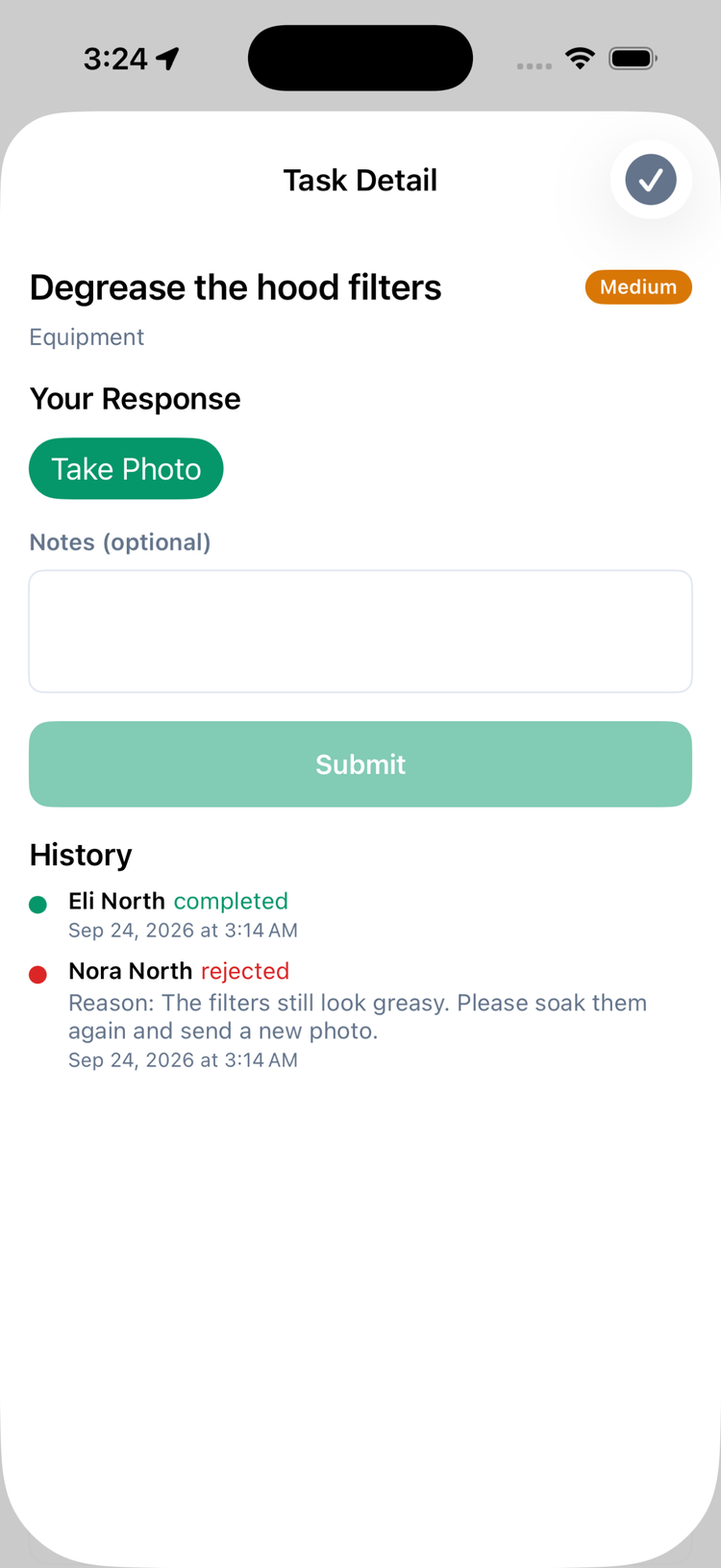
In My Tasks a rejected task has a red Rejected label, with who sent it back and their note underneath — for example Nora North: "The filters still look greasy". In the History tab it has a red Rejected label too.
If something goes wrong
- "Couldn't upload photo. Check your connection." Tap Try again — the app keeps your photo.
- "Couldn't submit. Check your connection and try again." Your answers are kept; tap Submit again when you're back online. Tapping it twice won't complete the task twice.
- A checkbox unticks itself. The tick didn't reach Mays (usually no signal, or you're not clocked in at that location). Tick it again once that's fixed.
- "This field isn't supported on mobile yet." Your app is out of date: update Mays from the App Store or Google Play, and the field becomes a list to pick from. "This field type isn't supported in your current app — update to complete it." means the same.
- "Employees unavailable" (or Locations unavailable, Vendors unavailable, Items unavailable). The list for that field didn't come with the task. Close the task and open it again; if it stays, ask your manager.
- "This task was due on an earlier day and can no longer be completed." Ask a manager to close it out.
There's no offline mode: you need a connection to submit.
For managers
The same Tasks tab has a few extras for managers and admins:
- Days: use the arrows or the date to look at earlier days (not future ones). Today jumps back.
- Locations: with more than one location, chips at the top filter the list.
- Create a task: the + button creates a one-off task for your location or one person. See Creating one-off tasks. If you can also add vendor invoices, + asks first: New task or Add invoice (see Vendor invoices).
- Review: open a completed task to see the answer and tap Reject Task to send it back — see Reviewing and rejecting completed tasks.
- Managers and admins can complete tasks without clocking in, and can close out tasks from earlier days.
Good to know
- iPhone and Android work the same way. On Android the screen for a task is titled with the task's name, and the Notes box says Add any additional notes....
- Barcodes: on Android, a barcode field in a form has a Scan button; on iPhone you type the code. On an Android phone without Google Play services, type the code too.
- Everything you complete also appears in the History tab, where your team can like and comment on it — see The Activity feed.