The Mays app lets you know when something needs you — a published schedule, a new task, a rejected task, a shift you can pick up, a request to approve, a chat message. Everything except chat is also kept under the bell in the app, so you can catch up later.
Notifications are a phone-app feature: the web app has no bell.
The bell
Tap the bell at the top right of any tab (except Knowledge) to open Notifications. The red number on the bell is how many you haven't read (up to 99+).
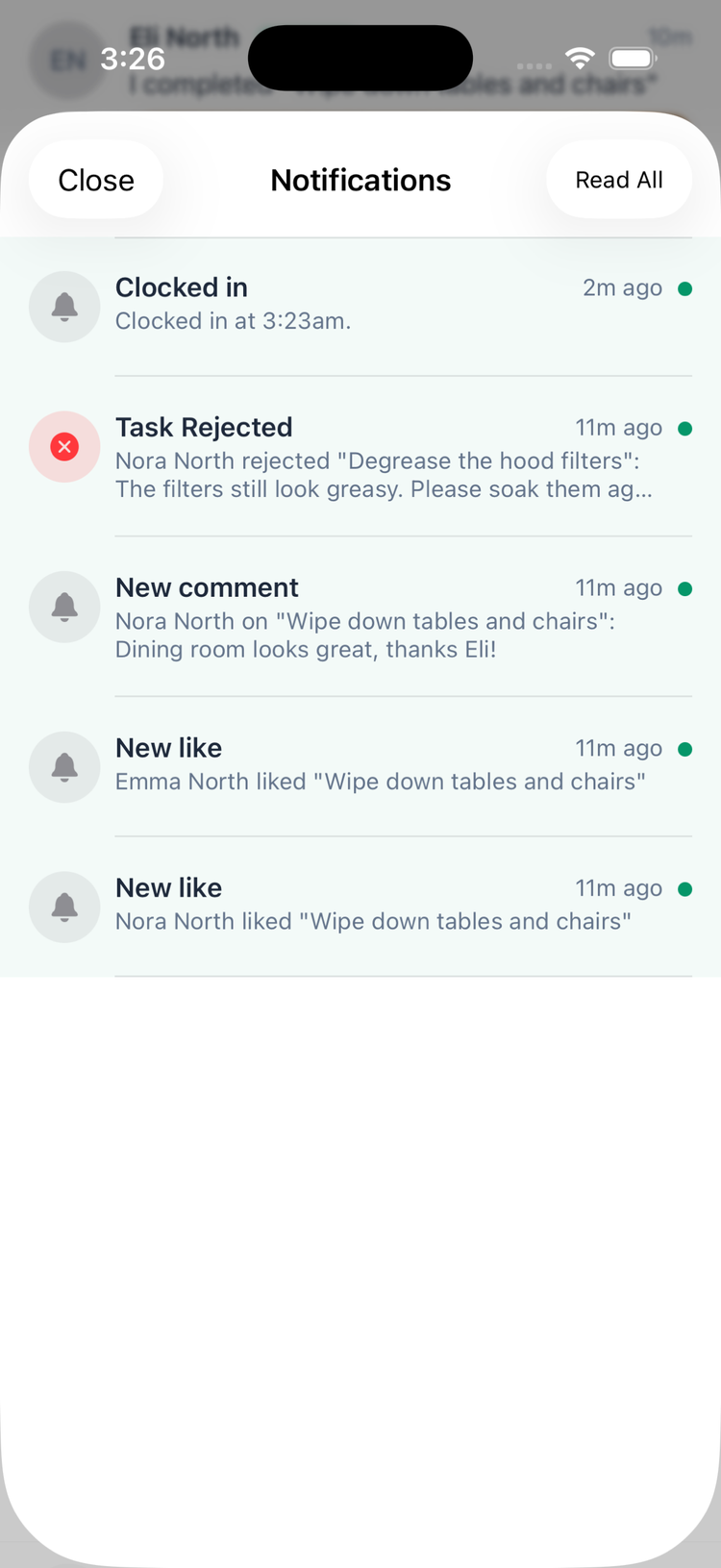
- Newest first. Unread ones are tinted green with a green dot.
- Tap a notification to mark it read and jump to what it's about — the task, the shift offers, your time-off requests, the approvals list and so on. A few (for example a decision on a shift you claimed) just show the message.
- Read All marks everything read. On iPhone the number on the app icon then shows only your unread chat messages.
- Chat messages aren't listed here; they're in the Chat tab.
Tapping a notification on your lock screen goes to the same place.
Choose what you get
- Tap your picture (top left) to open Profile.
- Tap Notifications (Choose what you get pushed).
- Switch categories on or off. Each change saves immediately.
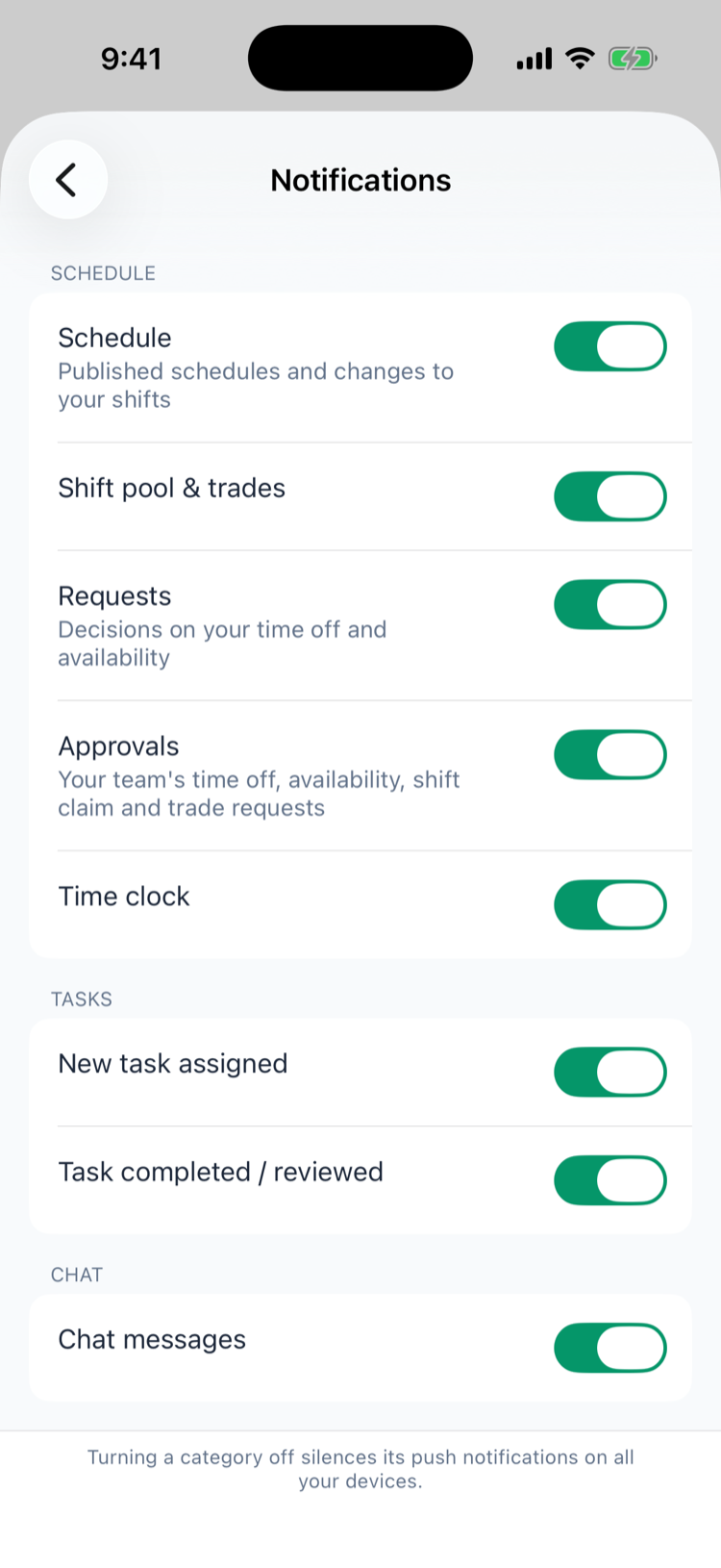
Category | What it covers |
|---|---|
Schedule | Published schedules, changes to your shifts, reminders before a shift starts and requests to confirm a shift. |
Shift pool & trades | Shifts offered up for grabs, decisions on your claims, hand-offs and trades, and requests to cover a shift. |
Requests | Decisions on your own time off and availability, and changes a manager makes to them. |
Approvals (managers and admins) | Your team's new time-off, availability, shift claim, cover and trade requests waiting for you, and a time-off request or shift claim being withdrawn. |
Time clock | Clock-in and clock-out confirmations, and changes to your punches. |
New task assigned | A new task given to you. |
Task completed / reviewed | For managers, a task your team completed; for everyone, a task that was rejected. |
Chat messages | New messages and reactions. |
Everything starts switched on. If you turned Requests off before Approvals existed, approvals still reach you — switch Approvals off yourself if you don't want them. Your choices are saved to your account, so they apply on every phone you sign in on.
Turning a category off stops the notification from popping up on your phone; it still appears under the bell. A few notifications can't be turned off: likes and comments on your tasks, the pending-tasks reminder (sent once a day at 7 AM location time), break reminders, birthdays and events, and pop quizzes.
Too many messages from one chat? Mute just that conversation from its menu in Chat — for an hour, 8 hours, 24 hours, a week, or until you unmute it.
Not getting notifications?
- Allow notifications for Mays in your phone's settings. The app asks right after you first sign in (on Android, only Android 13 and later ask), and notifications start as soon as you allow them. If you tapped Don't Allow, the app won't ask again — go to Settings → Notifications → Mays on iPhone, or Settings → Apps → Mays → Notifications on Android, and switch them on.
- Check the category is on under Profile → Notifications.
- Check the chat isn't muted, for chat messages.
- Check Focus / Do Not Disturb on your phone.
- Allowed them later in your phone's Settings? Close and reopen the app, so your phone is registered for them.
Even with notifications off, everything (except chat) still shows under the bell when you open the app. For other app problems, see Troubleshooting the Mays app.
Good to know
- Shared kiosk tablets don't get personal notifications.
- App icon badge (iPhone): the number on the Mays icon counts unread notifications and unread chat messages together.
- While the app is open on iPhone, a notification slides in at the top of the app with a sound instead of the usual banner. Tap it to go to the same place as tapping the notification on your lock screen.
- Chat notifications show who wrote and, for a photo or video, a preview. You can't reply from the notification — tap it to open the conversation.
- Emails about the schedule don't follow these settings.