When someone completes a photo task, Mays AI can look at the photo and score it against the task. A weak photo is flagged for the location's manager to review — or, once you trust it, rejected straight away and sent back to the person who took it.
Turn it on
Only admins can change these settings.
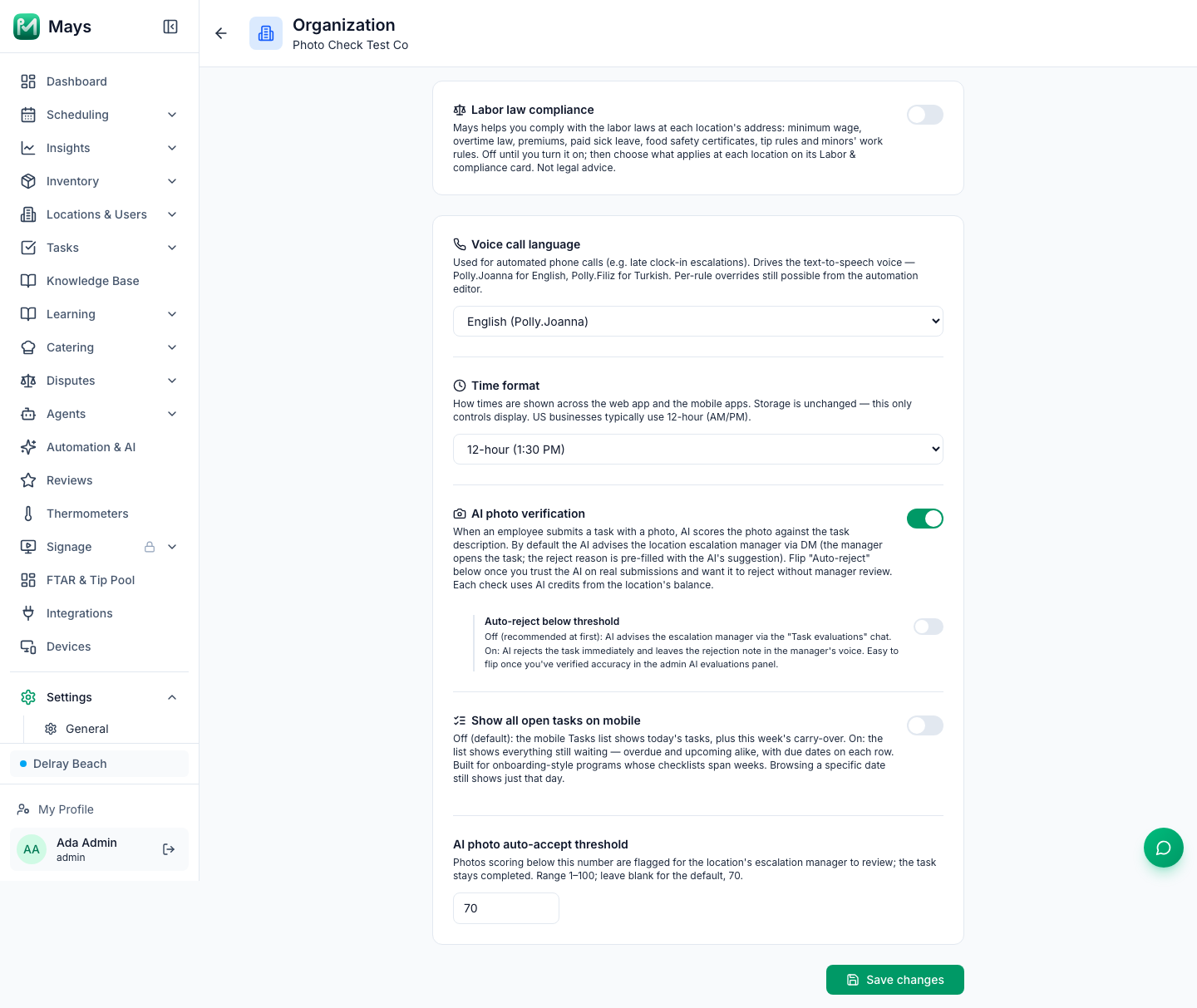
- Go to Settings → Organization.
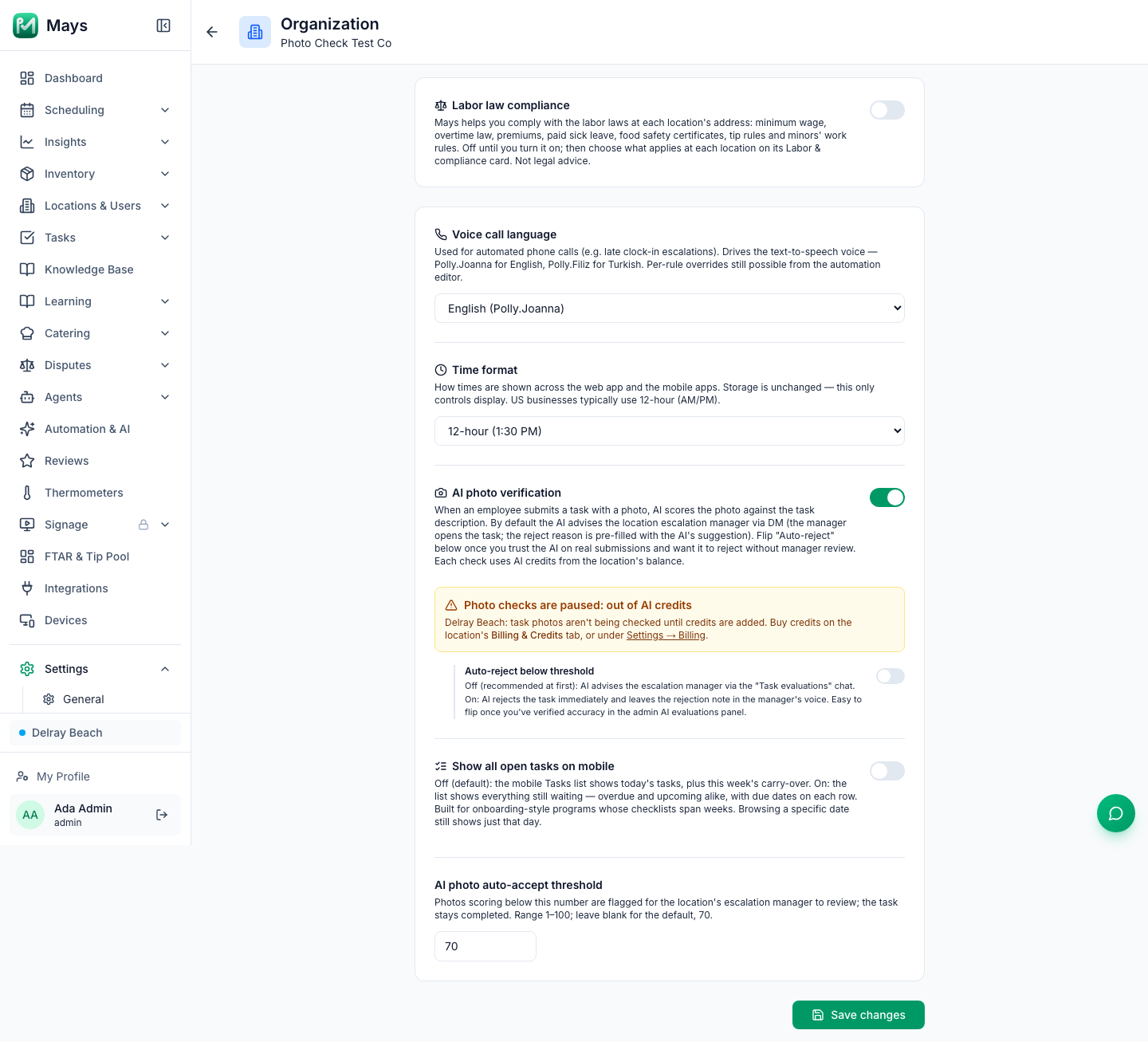
- Switch on AI photo verification.
- Leave Auto-reject below threshold off to start with (see the two modes below).
- Check AI photo auto-accept threshold — the score a photo needs to pass, from 1 to 100. It starts at 70; leave it blank to use 70. The text under the box says what happens to a photo below it in the mode you picked.
- Click Save changes.
From then on, every task whose answer type is Photo is checked when it's submitted, at every location. The check runs a moment after the photo is submitted, so the person first sees their task as done.
The two modes
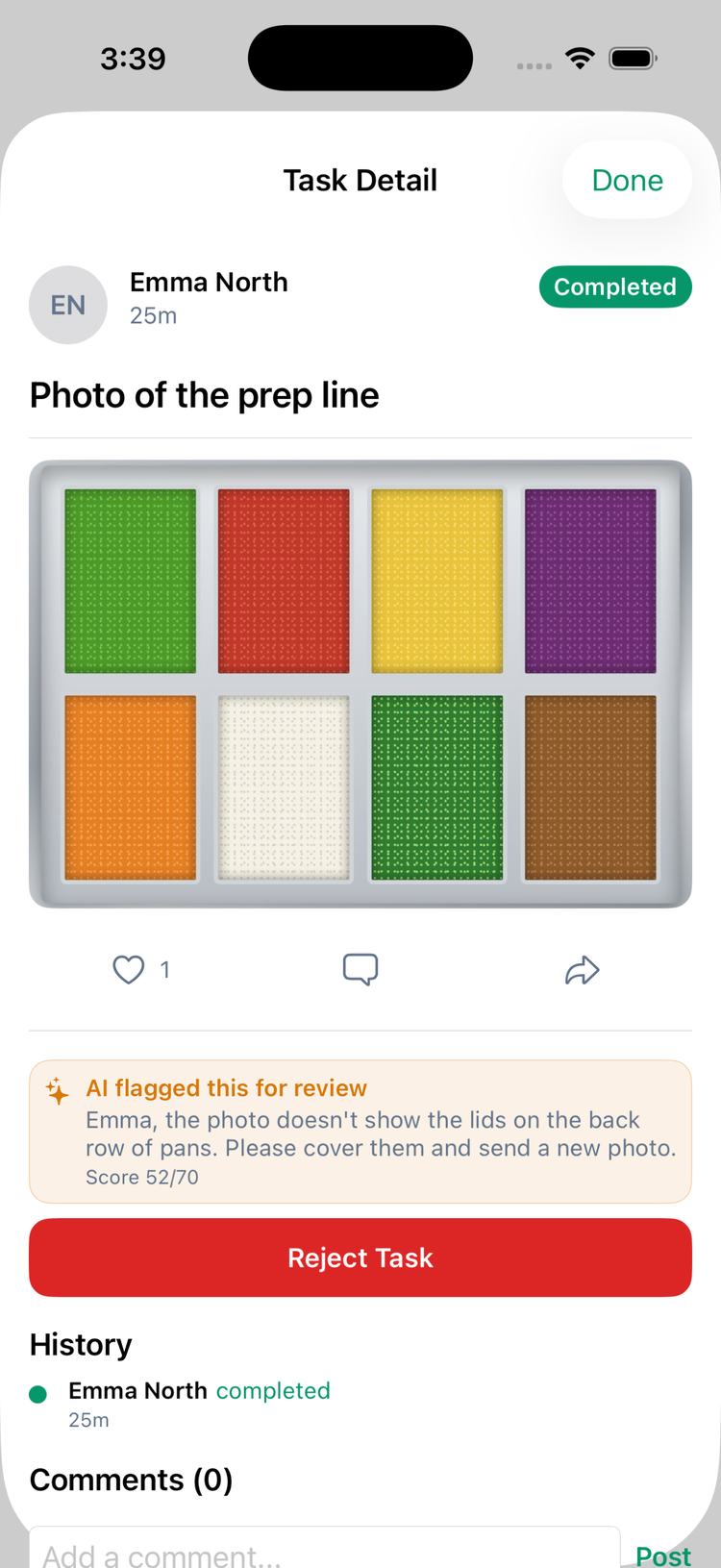
Advise only (Auto-reject off — recommended at first). A photo that scores below the threshold stays completed, and the location's escalation manager gets a message from the AI Assistant in a Task evaluations chat in the Mays app, linking to the task. When a manager opens that task in the app, an AI flagged this for review box shows the AI's note and the score; tapping Reject Task fills in the AI's note as the reason, so they only have to confirm.
Auto-reject (on). A photo below the threshold is rejected immediately. The person gets a Task Rejected notification with the AI's note — written in the escalation manager's voice when the location has one — and the task goes back on their list to redo. Switch this on once you've seen the AI's scores on real photos for a while.
Photos that pass are simply recorded; nothing changes for anyone.
Set the escalation manager
The advice goes to the location's escalation manager. Set one for each location under Locations & Users → Locations, open the location, Escalation manager. If a location has none, advise-only mode sends no chat message for it — the flag still shows on the task, without the AI's personal note.
Where managers see the result
- In the app: open the completed task from Tasks or History. The AI flagged this for review box appears above Reject Task on flagged photos.
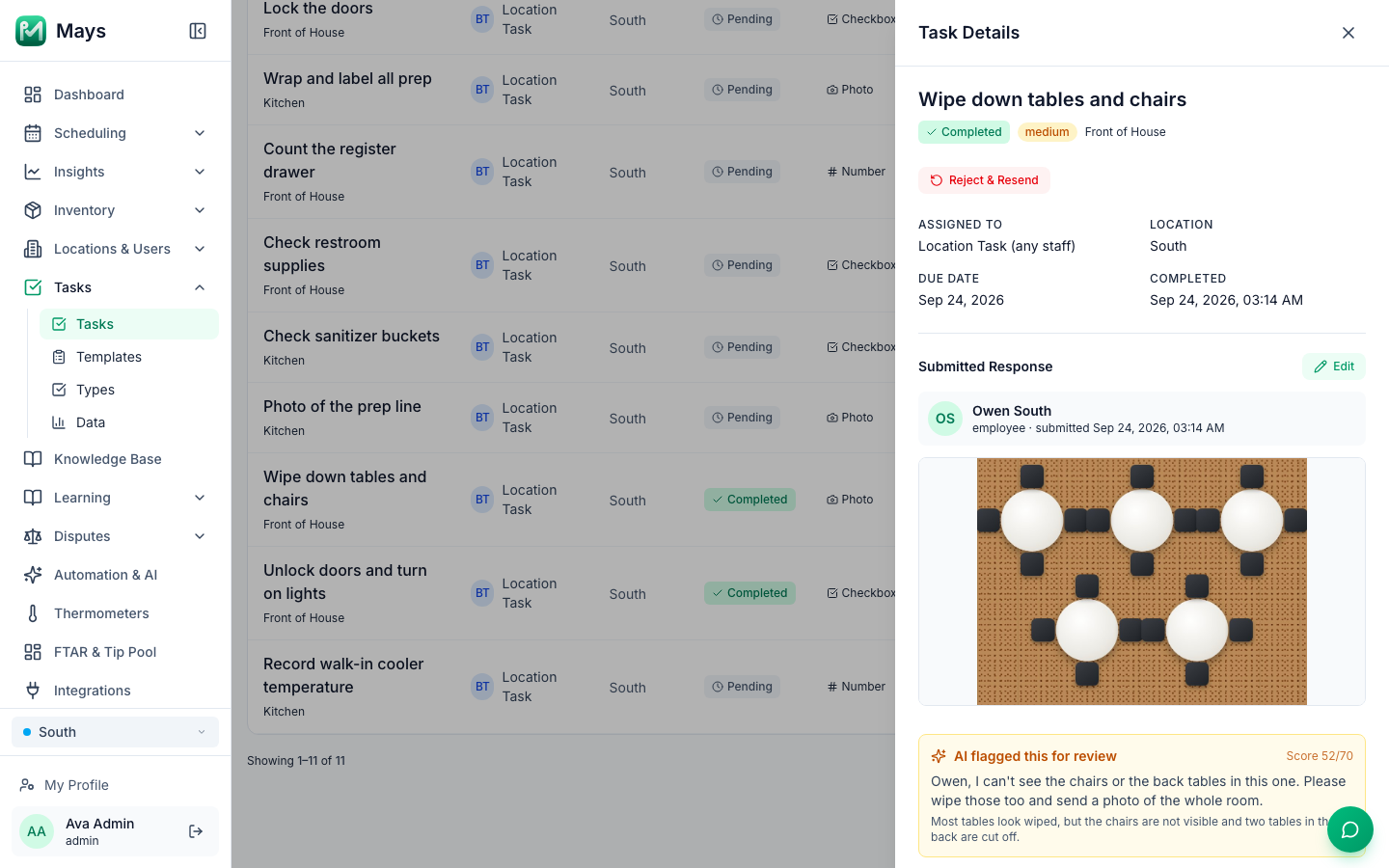
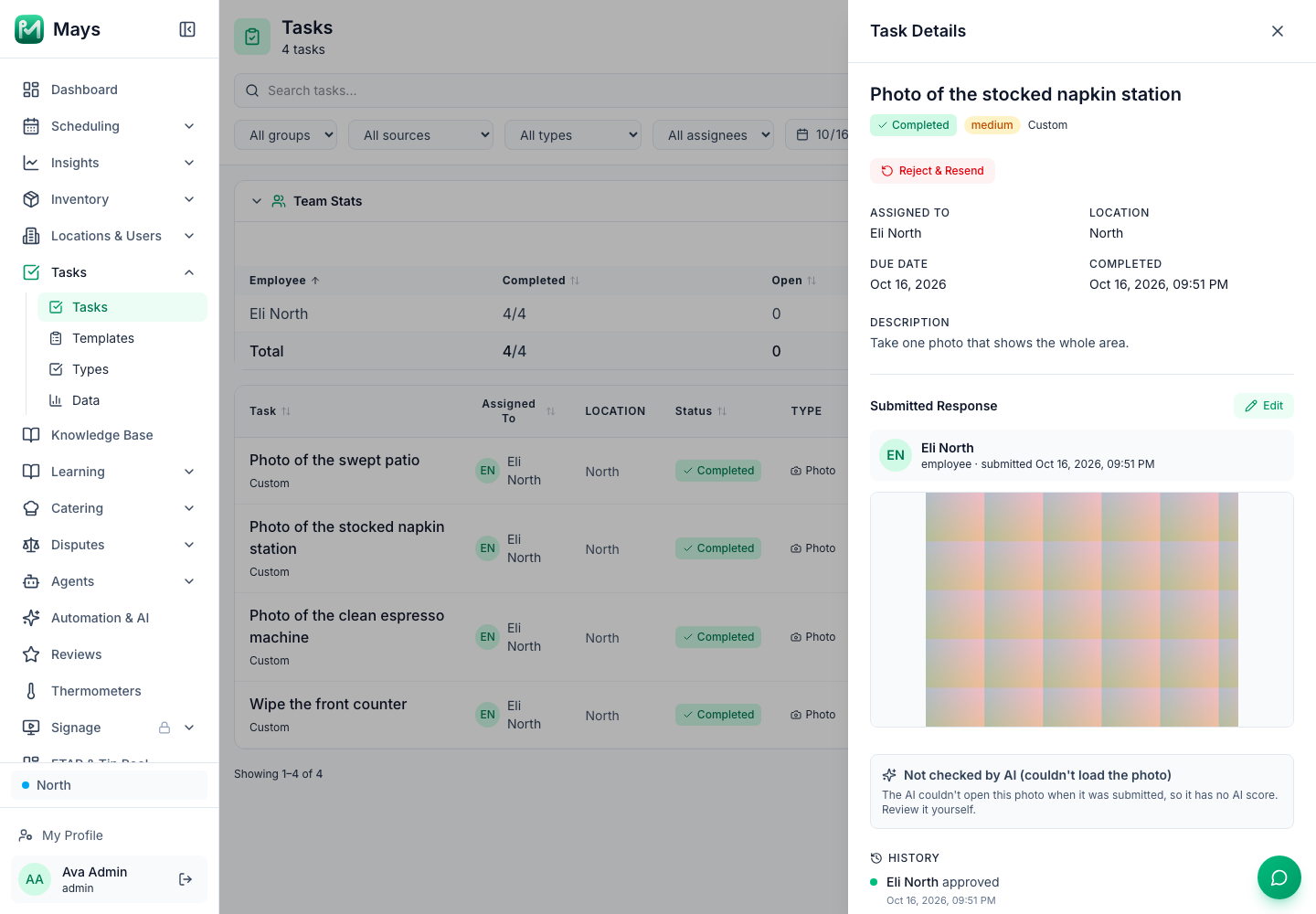
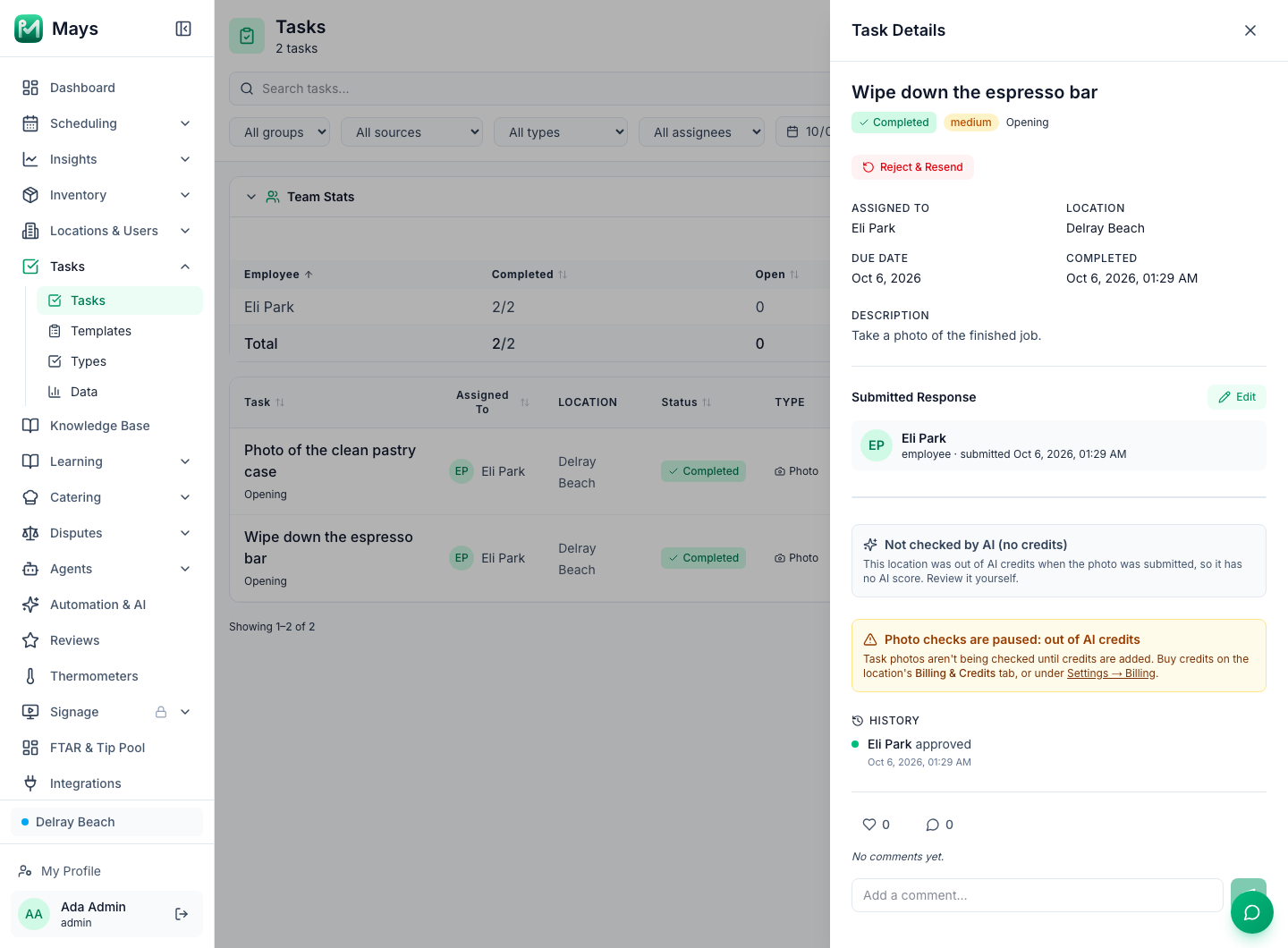
- On the web: under Tasks → Tasks, click the task. Below the photo, Task Details shows AI flagged this for review, AI auto-rejected this submission or AI verified this submission, with the score and the AI's reasoning. A photo the AI skipped because the location was out of credits shows Not checked by AI (no credits) instead. One it couldn't check shows Not checked by AI (couldn't load the photo) or Not checked by AI (AI service error). Review those yourself.
Change it for one person
Open someone under Locations & Users → Users, go to the Access & security tab and set AI photo auto-reject:
- Use organization default — follows the setting above.
- Always reject low-quality photos — for someone who keeps sending poor photos.
- Never auto-reject (advise only) — their photos are only ever flagged.
This only changes what happens to a low score; it doesn't turn checking on if it's off for the organization. It can be set once the person exists, not on Add User.
AI credits
Each check uses a few AI credits (typically about 2) from that location's balance — see the location's Billing & Credits tab, where the usage shows as photo verify.
If a location runs out of credits (or its free trial ends without a plan), its photos stop being checked until you add credits:
- The photo stays as submitted: the task stays completed, nothing is rejected, and on the web it shows Not checked by AI (no credits).
- The first skipped photo in a billing month sends Photo checks are paused: out of AI credits to the location's escalation manager (or to your admins, if the location has none), and an email to the location's billing contact and your admins. You're told once a month, not once per photo.
- Settings → Organization and the task's Task Details panel on the web show a Photo checks are paused: out of AI credits banner until the location has credits again.
See AI credits to add credits.
What the AI looks at
- The photo, the task's name and its description. It checks that the photo matches the task and shows the job done well: relevant, clean, clear and complete.
- It doesn't compare against a reference photo.
- It only checks tasks whose answer type is Photo. Photo fields inside a custom form aren't checked, and neither are tasks a manager marks completed on the web.
- A resubmitted photo is checked again, and uses credits again.
- If the photo can't be checked, it's never counted as passed and never rejected: the task stays completed and, on the web, shows Not checked by AI (couldn't load the photo) when the photo couldn't be opened, or Not checked by AI (AI service error) when the AI service had a problem. Review those yourself. No credits are used, and nobody is notified.
Good to know
- A low threshold lets more photos through; a high one flags more. 70 is a good start. Leaving the box empty saves 70; 0 and anything over 100 aren't accepted.
- The checking runs as the AI photo verification rule under Automations. It follows these settings: in the rule's editor, Threshold shows Org default (70) and Below the threshold shows Org default (advise only) or Org default (auto-reject). Pick a value there only if you want that rule to differ from this page.
- Whether it's on or off, a manager can always reject a task themselves — see Reviewing and rejecting completed tasks.
- In History and the task's timeline, an automatic rejection shows as rejected by AI Assistant.