Add someone once and Mays sends them what they need: employees get a text message with a link to the app, managers and admins get an email to set a web password.
Who can add people
- Admins can add anyone, with any role, at any location.
- Managers can add employees and other managers at the locations they're assigned to. They can't create admins, move an existing person to other locations, or give someone a role with a permission they don't have themselves.
Add someone on the web
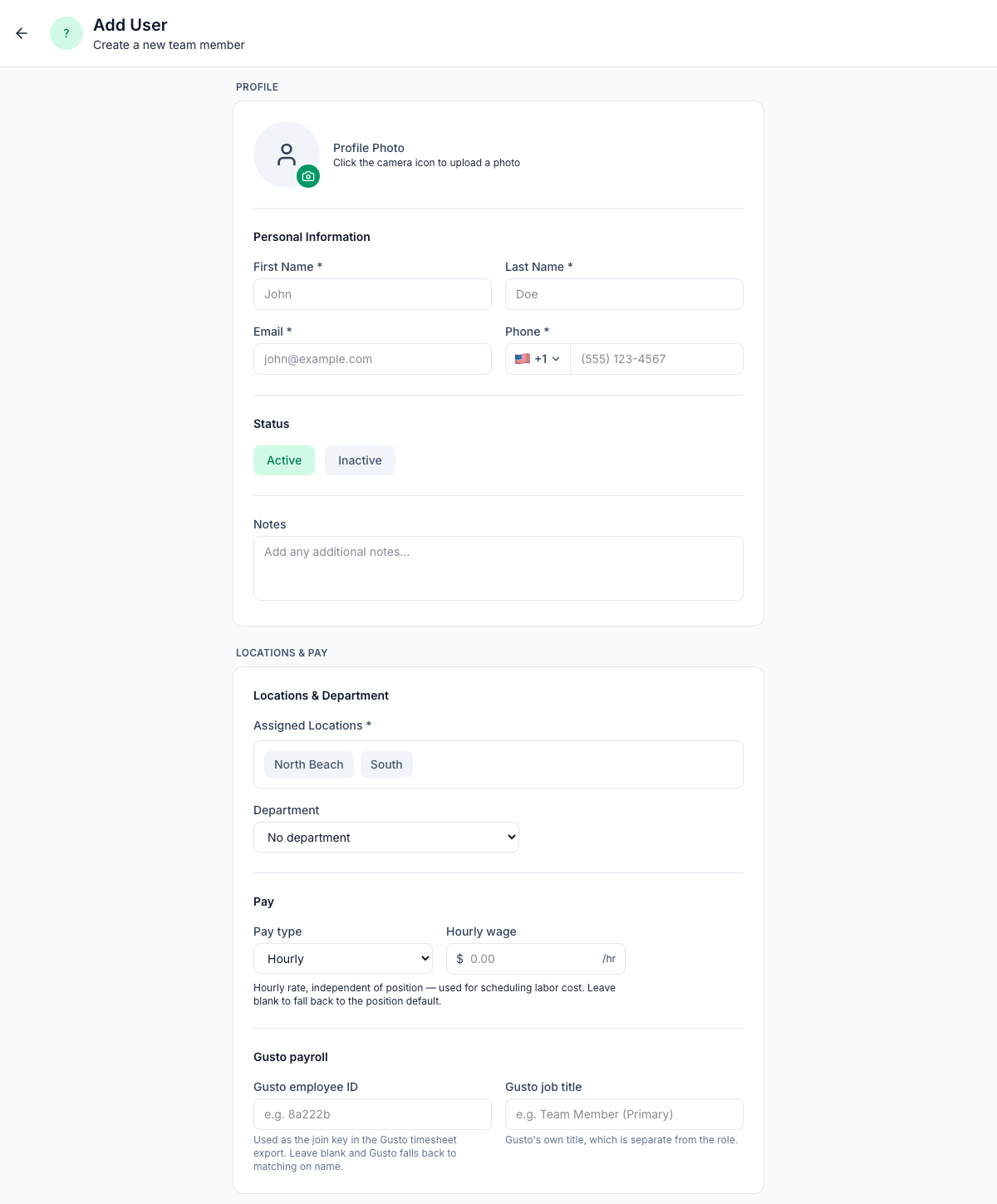
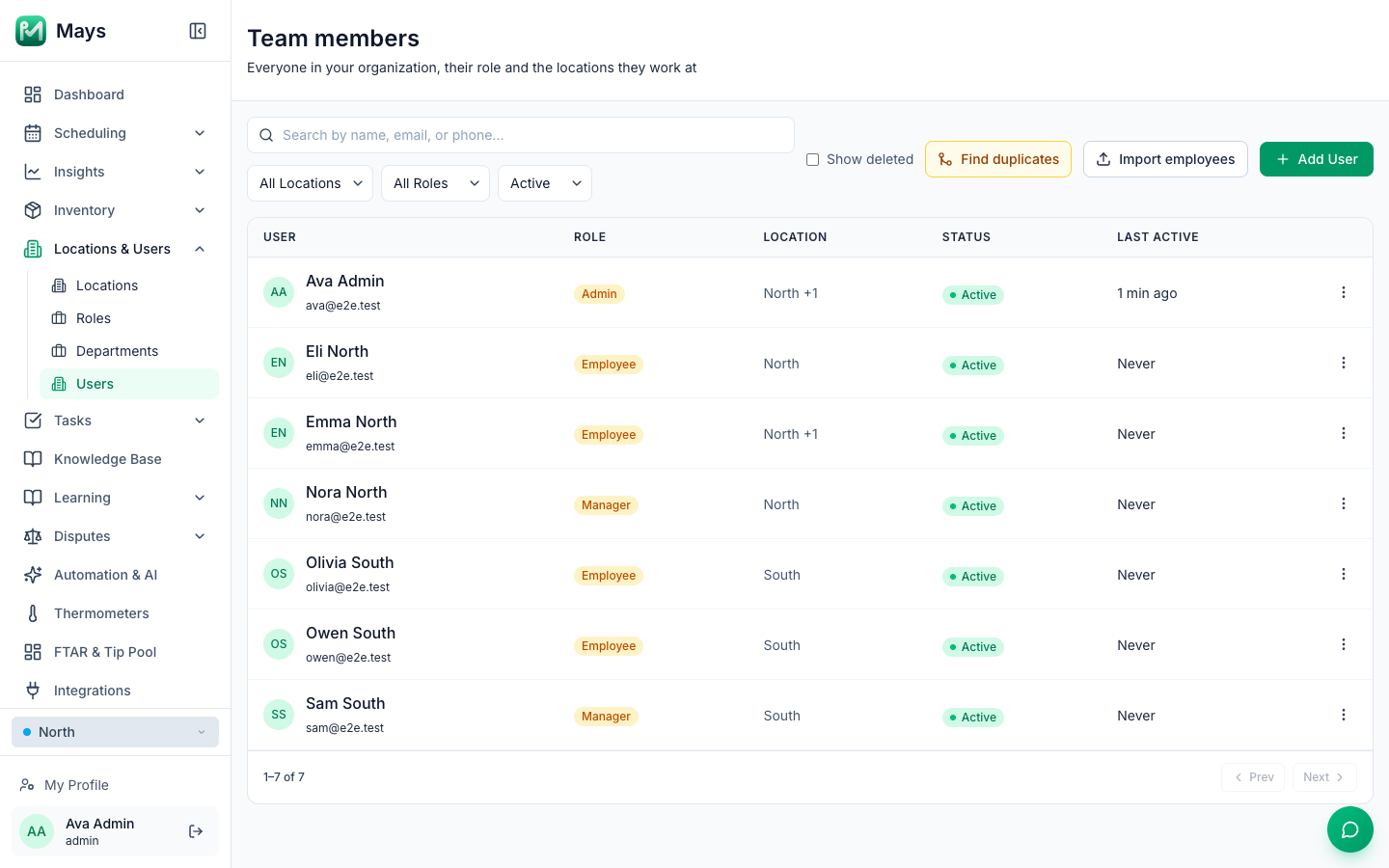
- Go to Locations & Users → Users (the page is called Team members) and click Add User. The page has four groups, one under the other: Profile, Locations & pay, Employment and Access & security.
- Under Profile → Personal Information, enter First Name, Last Name, Email and Phone — all four are required. The phone number is what they'll sign in to the app with, so use their own mobile number.
- Under Locations & pay, click one or more Assigned Locations and optionally pick a Department.
- Under Access & security, check the Role. It starts on Employee.
- Optionally fill in:
- Pay — Hourly or Weekly salary, and the amount. Leave it blank to use the default wage of the positions they work.
- Date of birth — they get a birthday message on the day and their managers get a heads-up. At a location with Labor law compliance's Minors (under 18) on, Mays also uses it to check the hours of anyone under 18. Only people who can edit this person see the date. See Schedule events and birthdays and Scheduling minors.
- Hire date — their first day of work. Paid sick leave waiting periods count from it; leave it empty and none applies.
- Notes, and a Profile Photo (click the camera icon).
- Click Create User.
Some settings only appear once the person exists — open them from the list to set their Scheduling Positions, meal-break waivers, Kiosk PIN and more.
A team member's page
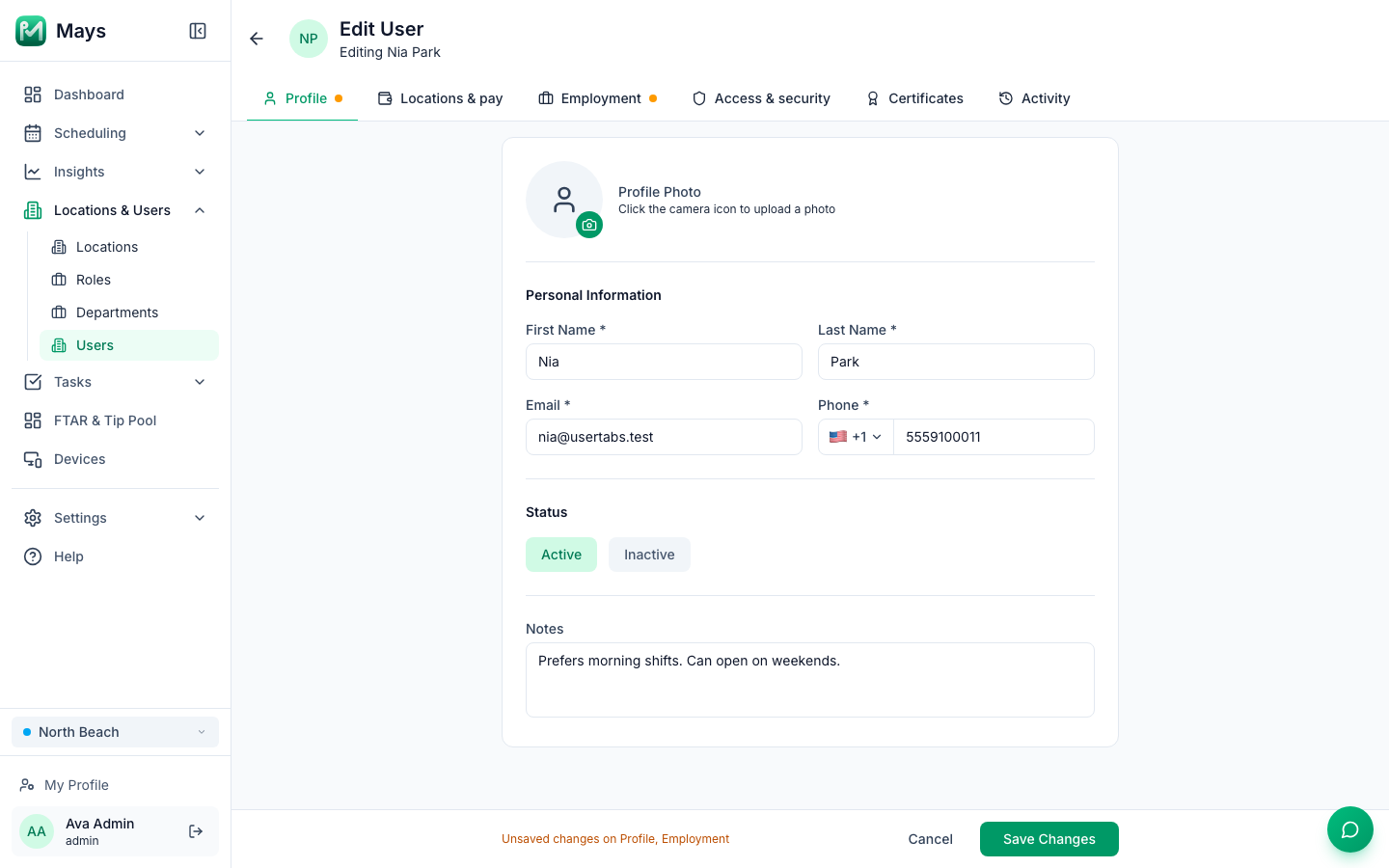
Click someone in the Team members list to open their page. It's split into tabs, like a location's page:
Tab | What's on it |
|---|---|
Profile | Photo, name, email, phone, Status and Notes |
Locations & pay | Assigned Locations, Department, Scheduling Positions, Pay and the Gusto payroll fields |
Employment | Hire date, Date of birth and meal-break waivers |
Access & security | Role, AI photo auto-reject, Kiosk PIN, and Account Actions such as Email Reset Link and Deactivate User |
Certificates | Food handler cards and other certificates. Only there while Labor law compliance's Food safety certificates is on at one of their locations |
Activity | Changes to their account, such as their status, role and meal-break waivers, and the invitation texts and emails sent to them |
You can change fields on several tabs and save them all at once with Save Changes at the bottom. A dot on a tab means it has changes you haven't saved yet, and switching tabs keeps them. Cancel asks before it throws unsaved changes away. The buttons under Kiosk PIN, Account Actions and Certificates act straight away and don't need Save Changes.
What they receive
Role | What Mays sends | What they do |
|---|---|---|
Admin or Manager | An email, "(your company) invited you to Mays", with an Accept invitation button. | Click it, choose a password and click Activate account. The link works for 7 days. |
Employee (and any other role) | A text: "You've been added to (your company) on Mays. Download the app and sign in with this phone number: https://mays.app/get" | Install the app from the link and sign in with their phone number and the code Mays texts them. No password. |
Until they accept or sign in for the first time, they show as Pending in the list. Their first sign-in makes them Active.
Someone with a custom role who also needs the web app gets the text, not the email. They can set a web password with Forgot password? on the sign-in page, or you can send them Email Reset Link from the Access & security tab of their page — Mays confirms with "Reset link sent to (their email)", and the link works for 24 hours. The button is greyed out until the person has an email address on their Profile tab.
Resend an invitation and check it arrived
- Resend: in the Team members list, click ⋮ → Resend Invite on a Pending person — or open them and click Resend Invitation under Account Actions on the Access & security tab. Mays sends the text or email again with a fresh 7-day link and confirms with "Invitation sent to (their phone number or email)"; if it could not be sent, the message says why.
- Check delivery: open the person and go to the Activity tab. Each text and email is listed — for example App download link texted to (•••) •••-1234 — delivered, or Invite email sent to j…@example.com. A line that says could not be texted or undelivered usually means the phone number is wrong: fix it on the Profile tab, click Save Changes, and resend.
Add someone from the app (managers and admins)
- Tap your picture in the top-left corner to open Profile, then tap Team.
- Tap +: at the top right on iPhone, at the bottom right on Android.
- Enter First name, Last name and Phone. Email is optional in the app — add it for managers and admins, who get their invitation by email.
- Pick the Role and the location: on iPhone you can tick several under Branches; on Android pick one Branch.
- Optionally set a wage (Hourly or Weekly salary), then tap Add (iPhone) or Add team member (Android).
They receive the same text or email as when you add them on the web. For everything else you can do from the app, see Managing your team from the app.
Good to know
- Each email address can only be used once in your organization, and capitals don't make a new one: Jane@example.com and jane@example.com are the same address. Mays saves emails in lower case. To find people who were added twice, use Find duplicates on the Team members page (admins). See Merging duplicate users.
- Kiosk PIN: everyone added on the web gets a 4-digit PIN for shared kiosk tablets, shown on the person's page under Kiosk PIN on the Access & security tab (Reveal, Change, Regenerate). Admins can see anyone's PIN; managers can see and change the PINs of staff at their own locations — not other managers' or admins'. The person sees their own PIN in their app profile.
- Gusto employee ID, Gusto job title and AI photo auto-reject are only kept when you edit an existing person — set them after you've created them.
- Food handler cards and other certificates: once someone is added, keep their cards and expiry dates on the Certificates tab of their page. The tab is there while Labor law compliance's Food safety certificates is on at one of their locations. See Food safety certificates.
- Adding many people at once? Use Import employees — see Import employees from a spreadsheet.
- To take someone's access away, open them and click Deactivate User on the Access & security tab. See Deactivating team members and deleting accounts.