A person's role decides what they can see and do in Mays; their assigned locations decide where. Mays comes with three roles, and admins can add their own.
The built-in roles
Role | Web app | Locations | In short |
|---|---|---|---|
Admin | Everything | Every location | Owns the setup: locations, users and roles, billing, integrations and settings. |
Manager | Most of the day-to-day | Only their assigned locations | Runs their stores: schedule and time clock, checklists and approvals, inventory, their team. |
Employee | No web access | Their assigned locations | Uses the phone app: tasks, schedule, clock in and out, chat. |
Go to Locations & Users → Roles to see them. They're marked System: you can't edit or delete them, but you can click the eye icon (View permissions) to see exactly what they include. Mays keeps them up to date — when a new feature ships, the built-in roles get its permissions automatically.
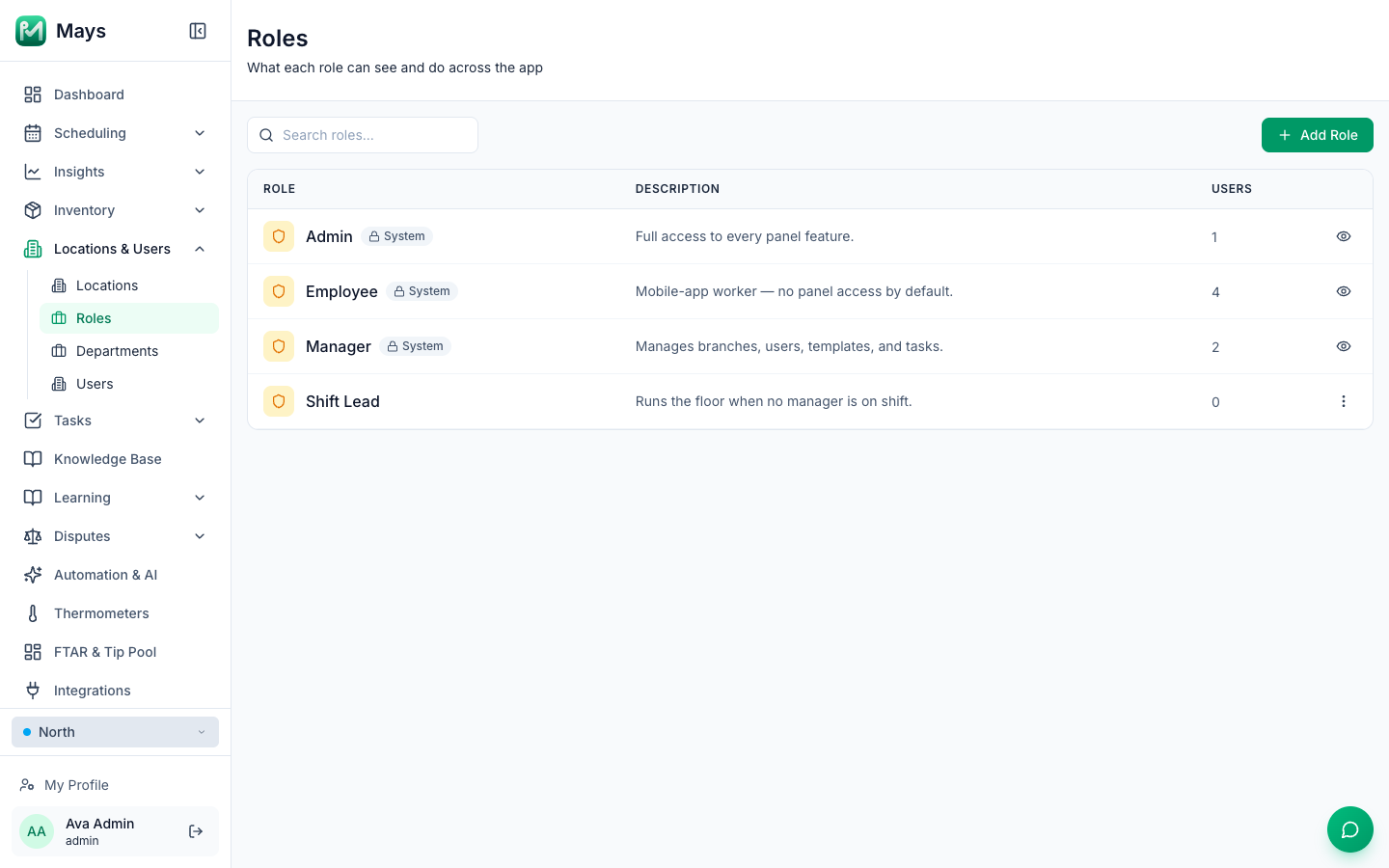
What managers can and can't do
Out of the box, a Manager can use the web app and, for their own locations:
- see the dashboard, build and publish the schedule, approve requests and edit the time clock;
- see the location list, add and invite employees and other managers, and edit, deactivate or reactivate the employees at their locations (not other managers or admins);
- set up and manage their locations' kiosk tablets (Devices);
- create and edit checklist templates, add one-off tasks and reject submitted work;
- use the knowledge base, inventory, the manager logbook, disputes, reviews, signage, thermometer readings, custom reports and the answers submitted on task forms;
- connect Square for their own locations;
- pay for their own locations and buy AI credits for them, on each location's Billing & Credits tab;
- set up the AI phone receptionist and digital signage for their own locations, including subscribing them. The receptionist follows View branches (and Pay for and buy AI credits for their own locations to subscribe), so a custom role without View branches doesn't get the receptionist tab.
Only admins can, by default: add, change or delete locations; give out any role; manage roles and departments; change organization settings and organization-wide billing; see Insights; set up integrations, automation, thermometer alerts, catering, learning, AI agents and custom task types; and run the AI onboarding. Importing inventory from Craftable and wiping all inventory data (Inventory → Import) are for admins only too: they need Connect / disconnect / sync integrations on top of Manage inventory, so managers don't get the Import link or its controls.
Employees have no web permissions — if they try the web app, it tells them to use the mobile app.
Where someone can work: assigned locations
- Admins see every location.
- Everyone else sees only their Assigned Locations — set on the Locations & pay tab of their page under Locations & Users → Users. A manager assigned to North sees North's schedule, people and checklists, not South's.
- Only admins can change which locations an existing person is assigned to.
- An admin who is assigned to particular locations still sees every location, except in Scheduling, which then shows only their assigned ones.
For how this works on each page and in the app, see Location access for managers and multi-location staff.
Give someone a role
Open the person under Locations & Users → Users, go to the Access & security tab and pick their Role, then click Save Changes. Each person has one role, and it applies at every location they're assigned to. New people start with Employee.
Managers can give a new person the Employee or Manager role, but never Admin — and never a role with a permission they don't have themselves, so their role list only offers the roles they can give. They can't edit other managers, admins, or anyone whose role has admin-level permissions.
Create a custom role
Use a custom role when a built-in one is too much or too little — for example a Shift Lead who can review checklists but not touch the schedule.
- Go to Locations & Users → Roles and click Add Role.
- Enter a Role Name (it must be unique) and, optionally, a Description.
- Under Permissions, tick what the role may do. Permissions are grouped by area — Core, Operations, Branches & Users, Templates & Tasks, Inventory and so on — and each shows a short explanation. Click a group's header to tick or clear the whole group; Select all and Clear work on everything. The counter shows how many are ticked.
- Click Create Role.
If the role can't be saved — for example because the name is already taken — the reason is shown above the buttons.
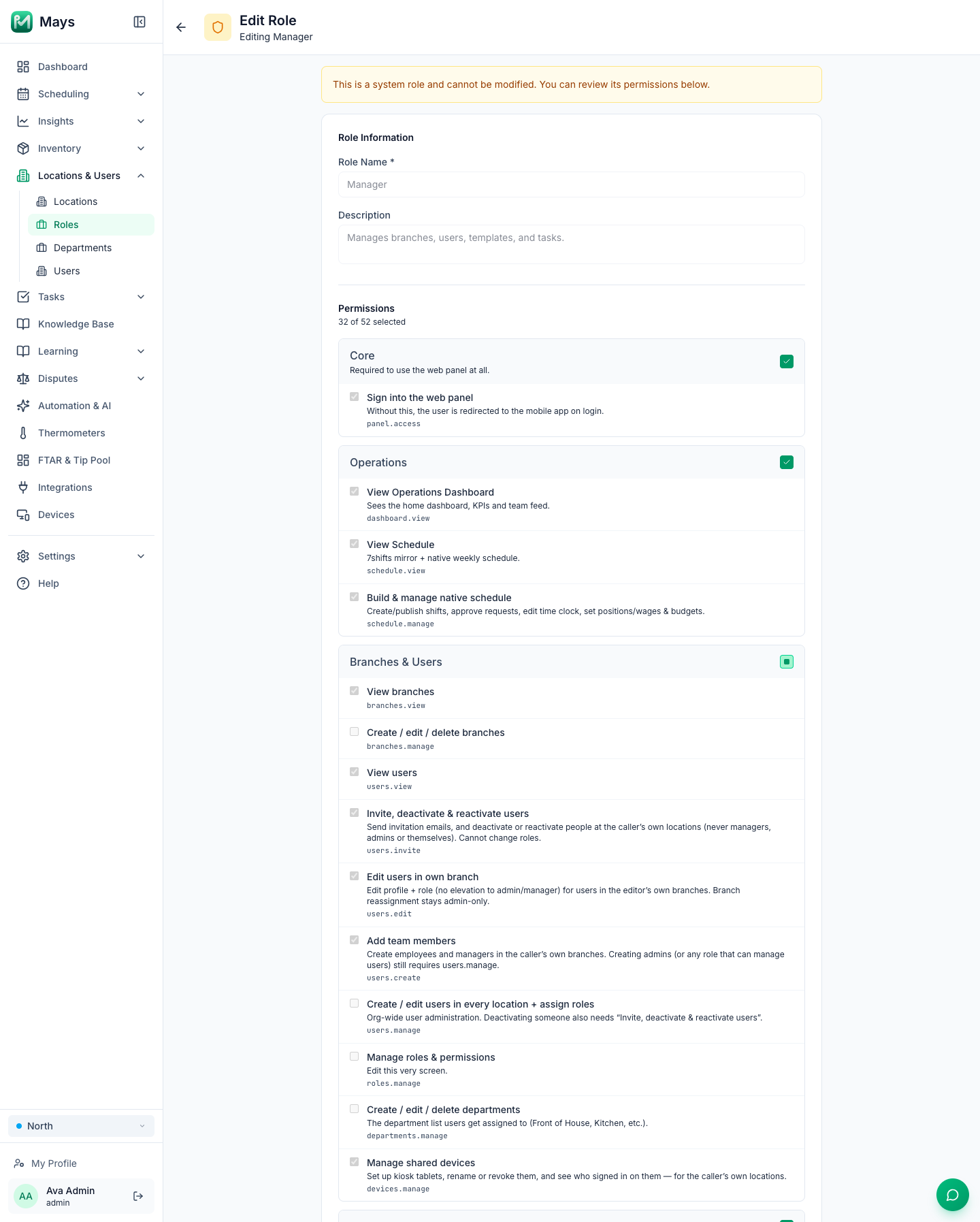
Tick Sign into the web panel (under Core) for anyone who should use the web app — without it, the person is sent to the mobile app when they sign in.
To change or remove a custom role, click ⋮ on its row and choose Edit or Delete. Deleting asks you to confirm ("This cannot be undone"); the Delete Role button inside the role's page deletes without asking. People who had a deleted role lose its permissions — give them a new role right away.
How Mays treats people with a custom role
A custom role gets exactly the web permissions you tick. Everywhere else, Mays treats its people like employees:
- they see only their assigned locations, even if you tick every permission;
- the phone app shows them the employee screens, not the manager ones (no approvals inbox, for example);
- they don't get the notifications meant for a location's managers;
- when you add them, they're invited by text message, not by email — see Add and invite team members.
If someone needs all of that, give them the built-in Manager or Admin role.
Good to know
- Only admins can create, edit or delete roles, and nobody can give a role a permission they don't have themselves.
- Changes take effect right away for what people can do. Their sidebar can take up to an hour to catch up — signing out and back in refreshes it.
- Roles, positions and departments are different things. A role is about access. A position (Server, Barista, Line Cook) is the job someone works on the schedule, with its wage — set under Scheduling → Positions. A department (Front of House, Kitchen) groups people for scheduling, labor reports and checklist assignments — set under Locations & Users → Departments. See Departments.
- Some permissions only matter when your plan includes that module — for example the inventory permissions do nothing without Inventory.