Start and end your breaks from the clock-in card on the Schedule tab — or on the store's kiosk. What you see depends on your store's break rules.
Start and end a break
- While you're on the clock, tap Start break.
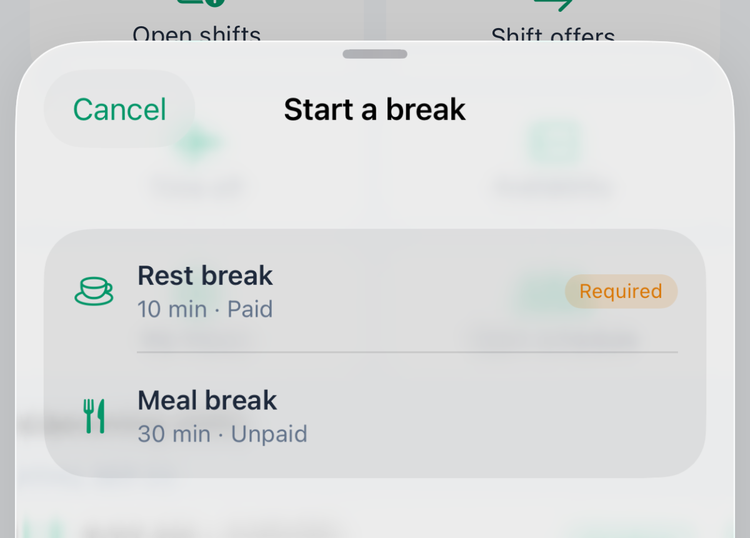
- If your store has named breaks, pick one under Start a break — each shows its length and whether it's Paid or Unpaid. A Required tag marks a break you must take in full; it only shows when your store enforces its breaks. Tap Cancel to go back.
- When you're back, tap End break.
If your store hasn't set up named breaks — or none of them apply to a shift as short as yours — Start break starts your break straight away. That break is never a required one: you can end it whenever you're back.
Breaks you have to take in full
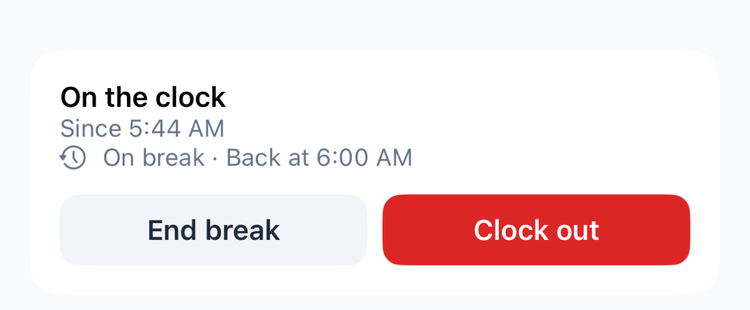
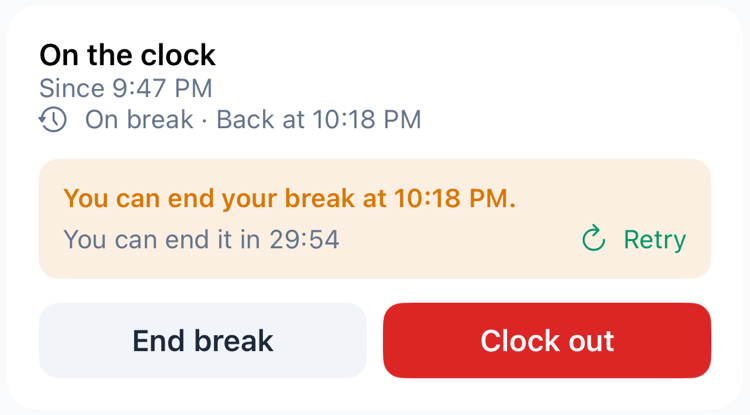
When a required break is running, the card says when you can come back — On break · Back at 10:18 PM. If your store enforces required breaks and you tap End break too early, you'll see You can end your break at 10:18 PM. with a countdown. Tap Retry (or End break) once the time is up.
When a break is due
At stores that follow a state's break rules, the card reminds you when a break is coming up — Meal break due by 10:44 AM or Rest break due by 9:44 AM — and turns orange if you're late: Meal break overdue — take it now.
Your store may also send you a notification:
Notification | When |
|---|---|
Break due — Take your 30-min meal break before 2:00 PM. | 15 minutes before the break is due. |
Break overdue — Your 30-min meal break was due by 2:00 PM — take it now. | When it's overdue. Your manager on duty is told too. |
The question when you clock out
Some stores ask about your breaks every time you clock out. Under Before you clock out you'll see:
Did you take all the meal and rest breaks you were entitled to today?
- Yes — I took all my breaks as required by policy.
- I had the opportunity but freely chose not to take one.
- No — work prevented me from taking one.
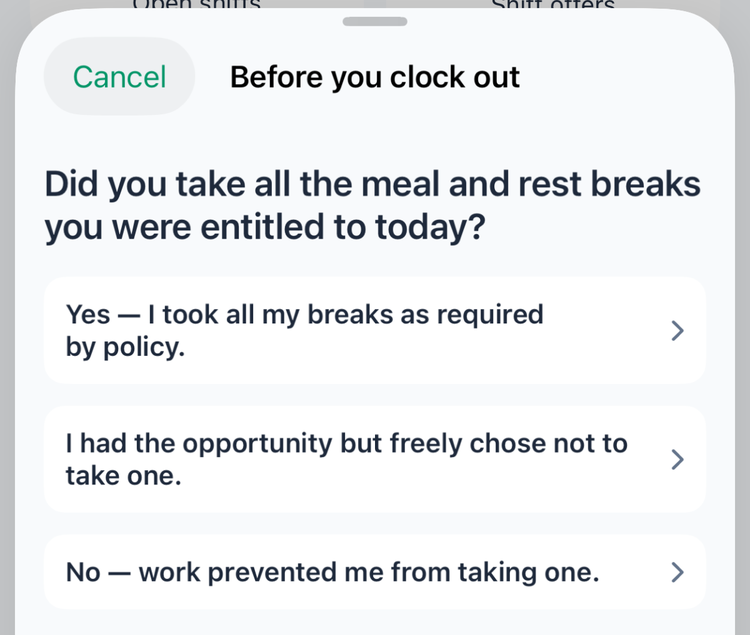
Tap the answer that's true — you're then clocked out. Your manager sees it with your punch. Cancel keeps you on the clock. If your store links its break policy, a View policy link is shown too. Your store may use its own wording.
If your phone is set to Spanish, the question and answers are shown in Spanish — unless your store wrote its own wording, which is shown as your store wrote it.
Good to know
- Paid or unpaid: a paid break counts as time worked; unpaid break time is taken off your hours. Under My Hours each shift shows its unpaid break time, for example 30m break. When you tap Start break without picking a named break, Mays goes by how long the break was: under 20 minutes it's a paid rest break, and 20 minutes or more an unpaid meal break. That also applies to a break that was still running when you clocked out.
- Clocking out ends your break if you forgot to end it.
- On the kiosk you take breaks the same way from the Clock tab — see Shared kiosk devices and PINs.
- After tapping an NFC tag, the punch screen offers Start break next to Clock out while you're working. (Older Android versions offer only one button — start your break from the Schedule tab, or update the Mays app.)
- On Android, the break list's Cancel button is at the bottom, and swiping the break question away counts as Cancel.
- Break notifications can't be turned off in the app.
- Managers set these rules per location — see Labor & compliance.