When a pay period is ready, download its hours from the Time Clock page — as a Standard CSV for any payroll provider, or as a Gusto timesheet you can import into Gusto.
Where: Scheduling → Time Clock → a pay period → Review (Scheduling, Pro plan). Managers and admins can export — exporting needs Build & manage native schedule, so a custom role that can only view the schedule doesn't see the export button. See Timesheets and pay periods for reviewing and closing the period first.
Download the file
- Open the pay period and review it: fix missing punch-outs, check the warnings and approve the punches.
- Click Close pay period so nobody changes the hours after you export (recommended, not required).
- Click the download button — Export on a closed period, a download icon on one that's still open — and choose:
- Standard CSV — Hours, wages, tips and surcharge.
- Gusto timesheet — Ready to import into Gusto.
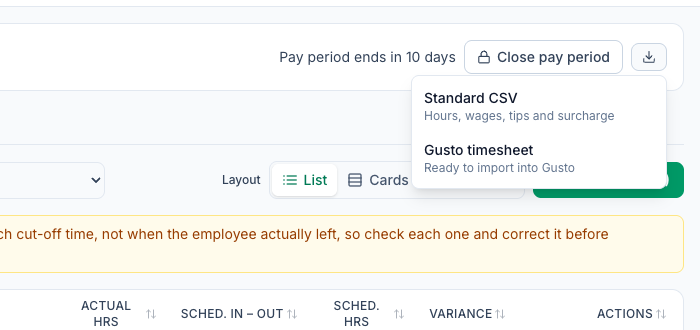
Both files have one row per employee and include every finished punch whose clock-in falls in the period, approved or not. Punches still open are left out, and so is anyone with no hours. The file is named after the sheet and the period's first day — for example pay-period-2026-09-21.csv or gusto-timesheet-2026-09-21.csv.
Check for a missing-sales note before you export. When your tips come from your POS sales, the pay period shows a yellow note if some days had staff clocked in but no sales came in from your POS: No sales came in from your POS for … while staff were clocked in, so tips for those days aren't in these totals or the Gusto file. Those days' tips are missing from both files until the sales arrive. Open a ticket in Help & Support and we'll load them, then download the file again. See Timesheets and pay periods.
What's in the Standard CSV
Column | What it holds |
|---|---|
Employee, Period Start, Period End | The person and the period's first and last day. |
Regular Hours, Overtime Hours, Double-time Hours | Hours split by your overtime settings (Scheduling → Settings → Workweek & overtime) and, with Labor law compliance's Overtime law on at the location, the overtime law at its address where it's more protective (see Labor & compliance). 7th-day hours are in the overtime and double-time columns. With twice-a-month or monthly periods, weekly overtime is counted over the whole 7-day workweek and lands in the period the hours past 40 were worked in (see Timesheets and pay periods). |
Regular Wages, Overtime Wages, Double-time Wages | Pay for those hours. |
Tips, Card Surcharge | From the location's tip pool, when it's on — see Tip pooling. |
Gross Pay | Wages plus tips and surcharge (plus compliance fees when they're costed). |
Break Premium Hours, Split Shift Premium Hours, Reporting Pay Hours, Compliance Fees, Spread of Hours Premium Hours | From Labor & compliance: break premiums and the rules-pack premiums when the location tracks them, and, with Labor law compliance's Premiums on, the spread-of-hours, split-shift and reporting pay the law at the location's address sets. Spread of Hours Premium Hours comes after Compliance Fees. |
Card Fee Deducted | Only when Labor law compliance's Tips is on at the location and it deducts the card processing fee from card tips. Tips is after the fee. |
Tips Declared, Tip Declaration | Only when the period has tip declarations (Wisconsin, with Labor law compliance on): the figure each person declared and whether they confirmed, corrected or haven't yet — see Tip declarations. |
About the wage columns: they use the wage saved on each punch. Punches made in Mays — in the app, on a kiosk, with an NFC tag or added by a manager — save it at clock-in: the person's own hourly wage, or else their position's wage — their main position's when the punch has no position (see Positions and wages); 7shifts punches bring their own. In an open period, a punch made in Mays with no wage saved (for example an older one from before late September 2026) is paid at the wage on file today, and closing the period saves that wage on it; a period that was already closed exports exactly as it did. Punches for salaried staff or anyone with no wage set at all come out as 0.00; for those, use the hours columns and let your payroll provider apply each person's rate. The Gusto timesheet carries hours, not wages, so none of this changes it.
What's in the Gusto timesheet
The file uses Gusto's own column names, in Gusto's order: last_name, first_name, title, gusto_employee_id, regular_hours, overtime_hours, double_overtime_hours, missed_break_hours, bonus, commission, paycheck_tips, cash_tips, correction_payment, custom_earning_distributed_service_charges, reimbursement, personal_note.
- It carries hours only. Gusto already knows everyone's pay rate.
missed_break_hoursis the break premium hours from Labor & compliance (0.00 when there are none). Gusto's sheet has no column for spread-of-hours, split-shift or reporting pay, so add those in Gusto yourself.- Tips go in
paycheck_tipsand the card surcharge incustom_earning_distributed_service_charges, as wages. If your Gusto account doesn't have that custom earning, choose Bonus (wages) under Gusto export: the surcharge goes in on the location's Tip pool card (the location's Scheduling tab), and it goes inbonusinstead. Tips column is there for money customers choose freely; a mandatory charge such as a card surcharge is wages, not tips. When the location deducts the card processing fee from card tips (with Labor law compliance's Tips on),paycheck_tipsis after the fee andpersonal_notesays how much was deducted. - Columns Mays doesn't fill stay blank.
In Gusto, import it as a timesheet for the matching pay period. Each location exports on its own pay period — a location with its own pay period (for example every 2 weeks while the others are weekly) has its own dates. A Transition period after a pay schedule change exports with its own, shorter dates; run it as its own payroll in Gusto.
Add your Gusto employee IDs
Gusto matches rows by gusto_employee_id. Without one, Gusto falls back to matching on the name, which breaks on nicknames and typos.
Where: Scheduling → Settings → Gusto employee IDs (admins only).
- In Gusto, download a timesheet for your company — it already contains everyone's ID.
- Click Import Gusto CSV and choose that file.
- Mays matches people by name and saves their IDs. It tells you how many were matched and saved, and lists anyone it couldn't place with a Who is this? picker so you can match them yourself.
Still without an ID lists your current staff who don't have one yet; click a name to open their page on the Locations & pay tab. The counter at the top shows how many do.
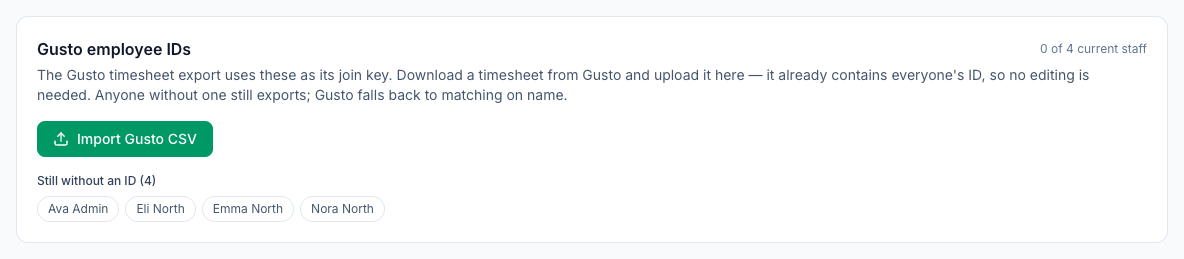
You can also type one in on a person's page under Locations & Users → Users, on the Locations & pay tab: Gusto employee ID and Gusto job title (Gusto's own title, separate from their role in Mays).
Sending hours straight to Gusto
The Gusto Payroll card on the Time Clock page says Direct Gusto sync isn't available yet — download the Gusto timesheet from a pay period and import it into Gusto. Use the Gusto timesheet download above.
Where direct sync is turned on and the location is connected, a closed pay period has a Run Payroll button for anyone who can export. It sends each person's hours to Gusto under their Gusto employee ID; only someone with no ID is matched by email. A Gusto ID that isn't in the connected Gusto company is skipped, not guessed by email. When it finishes you see how many were sent, how many went by Gusto ID and how many by email, and who was skipped and why; if it fails, the reason is shown.
Only a closed pay period can be sent to Gusto, because an open one's hours and tips can still change. If the period was reopened after you opened the page, Run Payroll sends nothing and shows Close the pay period before running payroll.; the page then refreshes to show the period open. Close it again, then run payroll.
Good to know
- Export any time. You can export an open period to check the numbers; export again after you close it for the final file.
- Labor Summary vs Standard CSV: the Labor Summary's Total Pay is the same figure as the CSV's Gross Pay — wages, tips, card surcharge and compliance fees where costed. The Labor Summary shows tips and the surcharge together as Tips & Surcharge.
- You're told how it went. A download says Pay period CSV downloaded. or Gusto timesheet downloaded.; if it fails, the reason is shown, for example a session that expired.
- Other providers (ADP, Paychex and so on): use the Standard CSV and map its columns in your provider's import.
- Scheduling → Reports → Employee Timesheet gives you a per-punch list if your provider wants every punch rather than totals.