Every punch your team makes lands in a pay period on the Time Clock page. Review it there, fix what's wrong, approve it, and close the period when it's ready for payroll.
Where: Scheduling → Time Clock on the web. It's part of Scheduling (Pro plan). Managers and admins can use all of it; a custom role needs View Schedule to open it, and Build & manage native schedule to add, edit, approve or close, and to see the Labor Summary, the export and any pay figures — with View Schedule alone it sees hours but no money. Pay periods are per location — switch location in the sidebar.
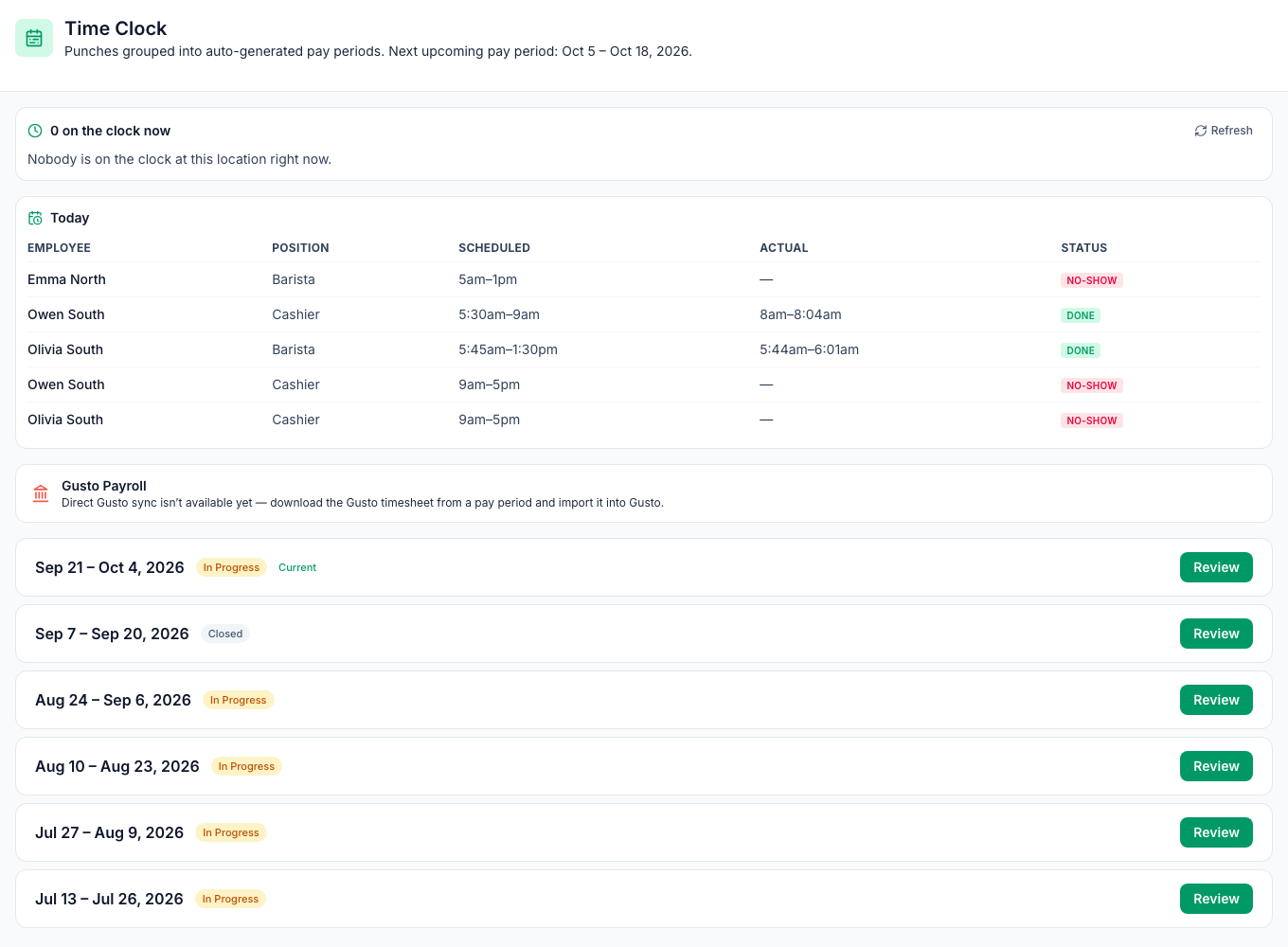
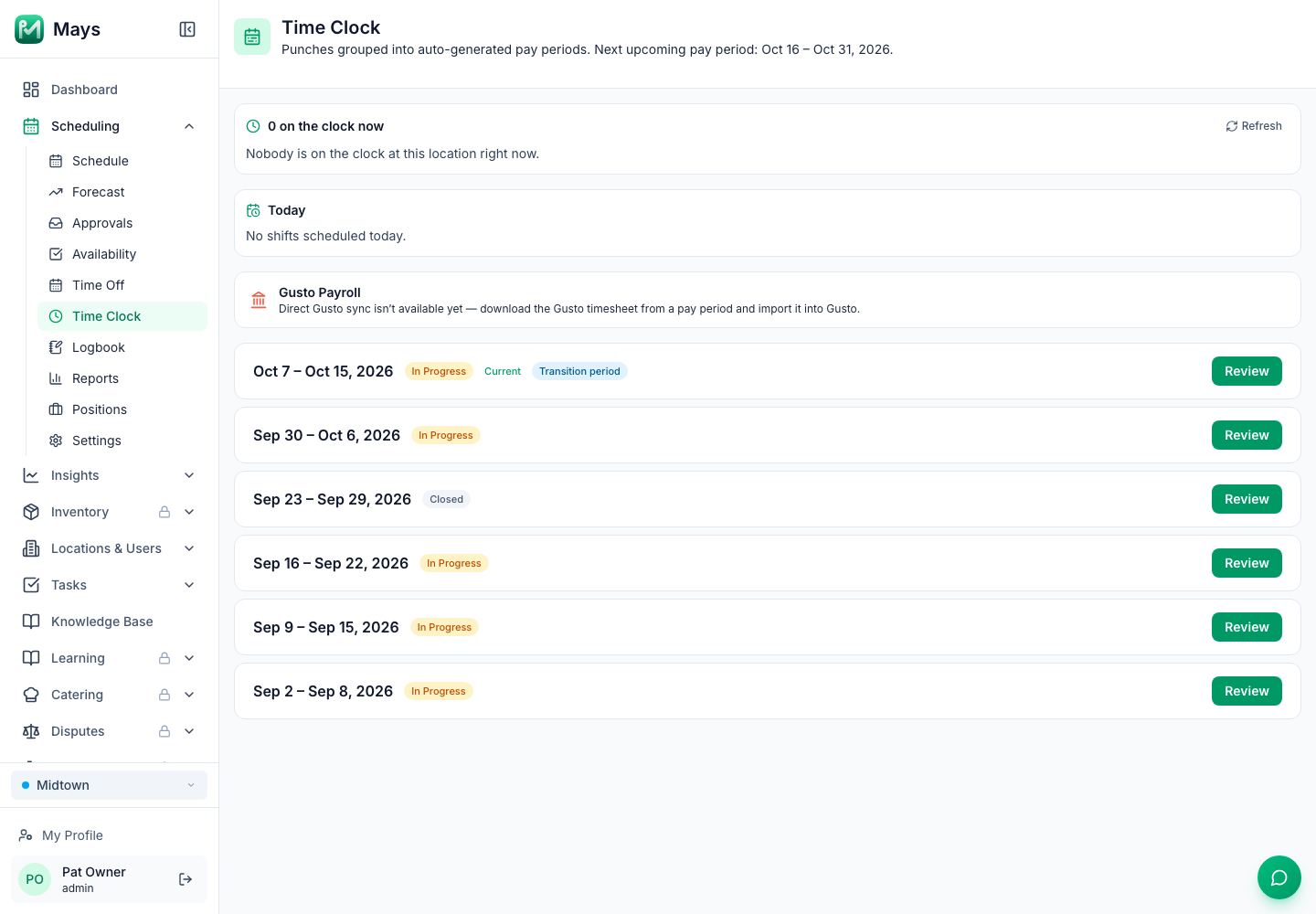
The page lists the current pay period and the five before it, newest first. Each shows In Progress or Closed; click Review to open one. A period marked Transition period is the one-off shorter period between two pay schedules (see below). The live on the clock now strip and the Today table at the top are covered in Attendance, late and no-show alerts.
Set how long a pay period is
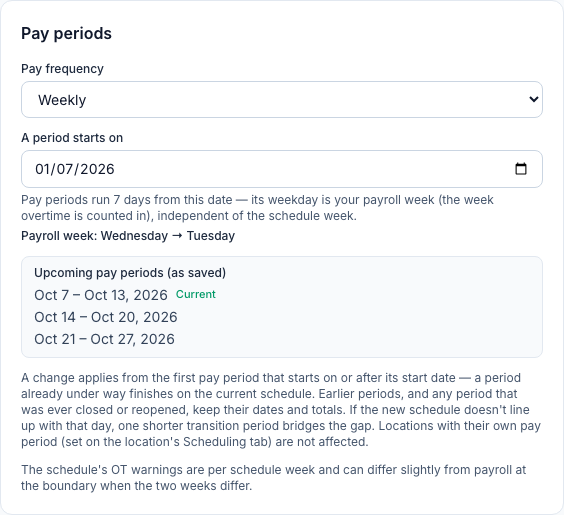
An admin sets the organization's pay period under Scheduling → Settings → Pay periods:
- Pay frequency — Weekly, Every 2 weeks (the default), Twice a month (1st–15th and 16th–end) or Monthly.
- A period starts on — the date the cycle starts from. Its weekday is your payroll week, which can differ from the schedule week. For twice a month you pick Overtime workweek starts on instead (Monday by default).
The box underneath previews the next periods. Every location follows this unless it has its own pay period.
A location with its own pay period
When a location runs its own payroll — for example a separate company that pays every 2 weeks while your other locations pay weekly — give it its own pay period: Locations & Users → Locations → the location → Scheduling → Pay periods → tick This location uses its own pay period, pick the frequency and the start date, and click Save pay period. Only an organization admin can change it; managers see it read-only. Untick it to go back to the organization's pay period. Everything for that location follows its own pay period: the Time Clock list, closing, the Labor Summary, both exports and the Gusto push, the tips, tip declarations, My Hours in the app and PTO earned per pay period.
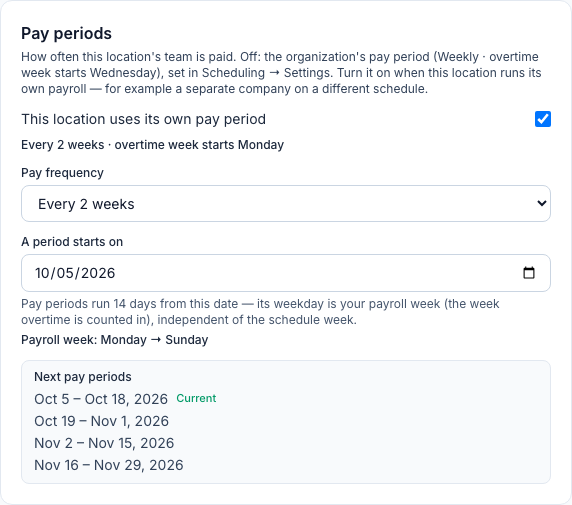
A new location with no hours yet uses its pay period from the start.
Changing a pay period
A change — for the organization or one location — never moves a period that already happened:
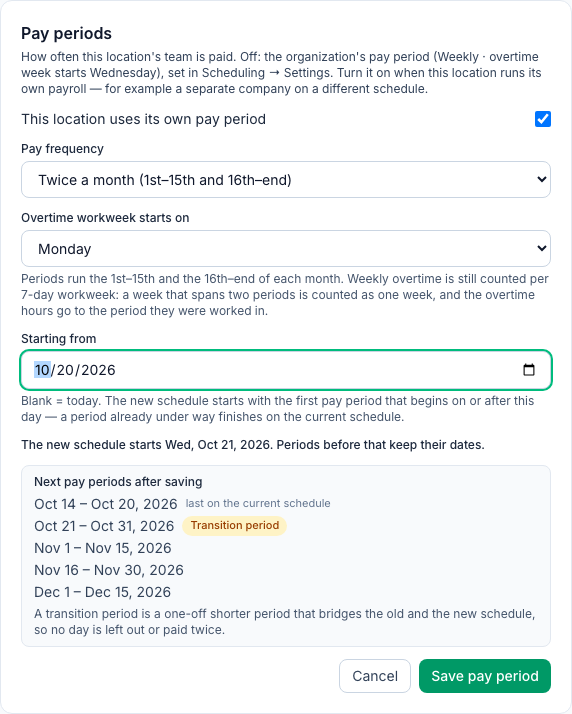
- It starts with the first pay period that begins on or after Starting from (blank is today). A period already under way finishes on the current schedule.
- Periods before that, and every period that was ever closed or reopened, keep their dates and totals, so an export of a period you've already paid stays the same.
- If the new schedule doesn't line up with that day, one shorter Transition period bridges the gap — no day is left out or paid twice. It's closed and exported like any other period.
- Mays refuses a start day in the past once hours were recorded after it, and says so before you save.
Before you save, the card shows exactly what will happen — The new schedule starts …, the last period on the current schedule and the next ones on the new schedule.
Review the punches
A pay period has five tabs: Employee Punches, Warnings, Exceptions, Labor Summary and Tips (the tip pool breakdown and, where Labor law compliance's Tips is on at a Wisconsin location, tip declarations — see Tip declarations). The top card shows how many punches are approved (for example 2/7 approved) and how many days are left. The tip pool calculator on the FTAR & Tip Pool page splits tips exactly the same way, among everyone who worked, so for the same location and days it shows the same amounts as the Tips tab. Because those amounts are pay, the calculator and the tips total only show for people who can see pay; others see the hours and the performance table.
When sales from your POS are missing. If your tips come from the sales your POS (Square or Union) sends Mays, a yellow note appears under the top card when some days in the period had staff clocked in but no sales came in from the POS — for example, days before the POS was connected, or while it was disconnected: No sales came in from your POS for Mon Sep 21 – Fri Sep 25 while staff were clocked in, so tips for those days aren't in these totals or the Gusto file. Open a ticket in Help & Support and we'll load the missing sales. The period's tips and exports update by themselves once the sales arrive, even on a closed period. You see the note if you can see pay.
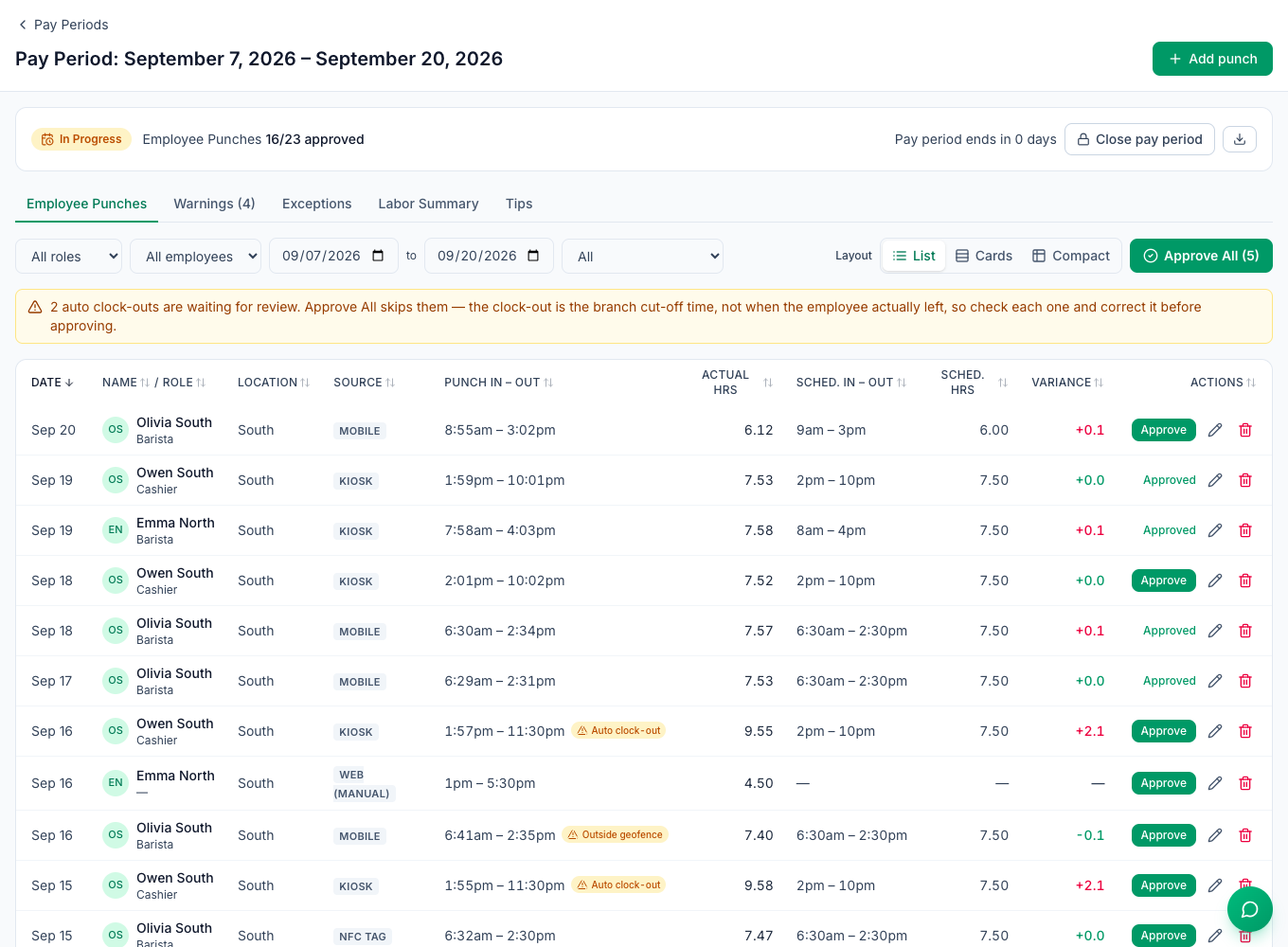
Filter by role, employee, dates, or status (Unapproved, Approved, Missing punch-out, No matching shift). Choose a Layout:
Layout | What you see |
|---|---|
List | One row per punch: date, name and role, location, Source, Punch In – Out, actual hours, scheduled times and hours, Variance and actions. Click any column header to sort; click again to reverse. |
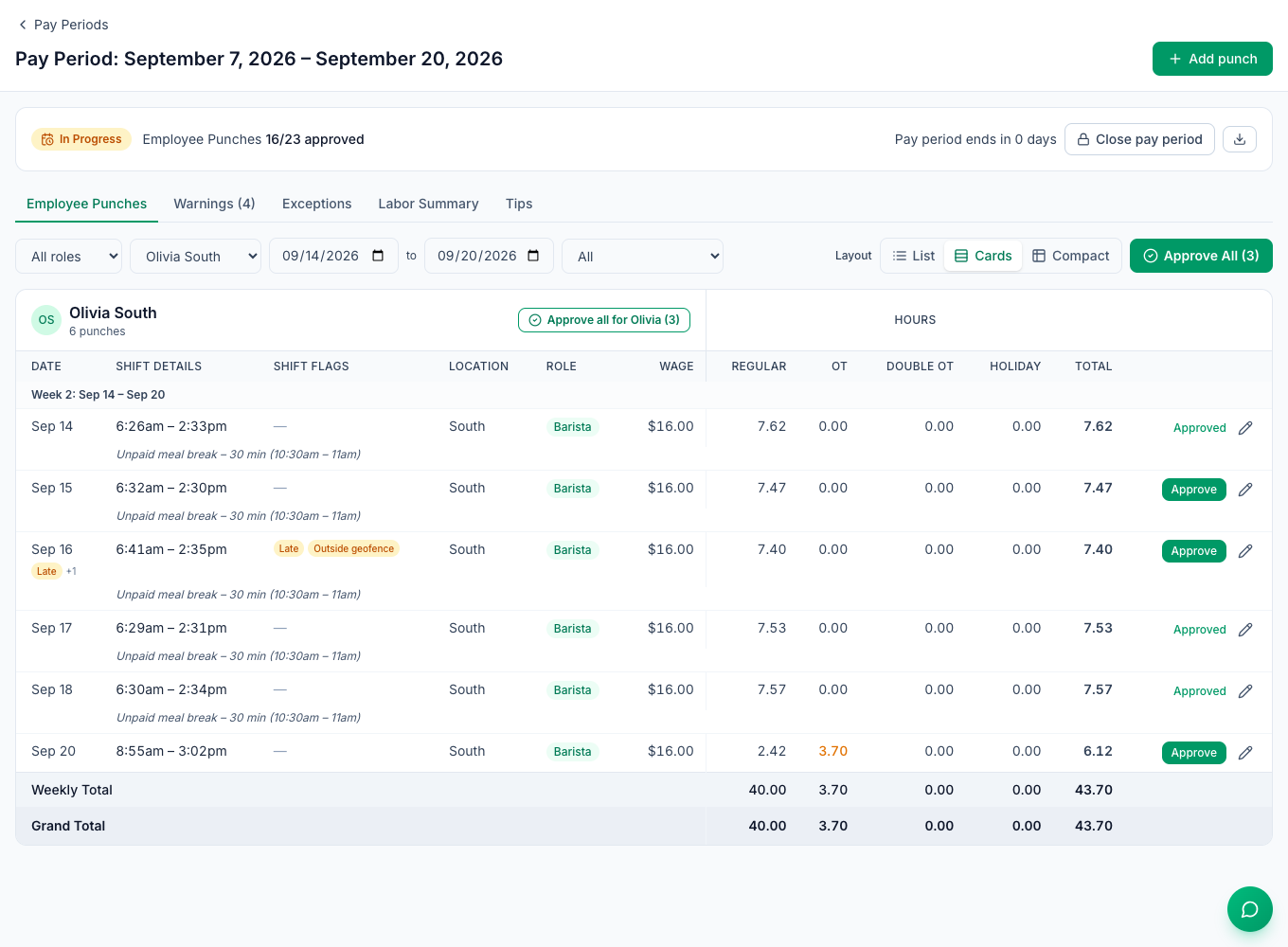
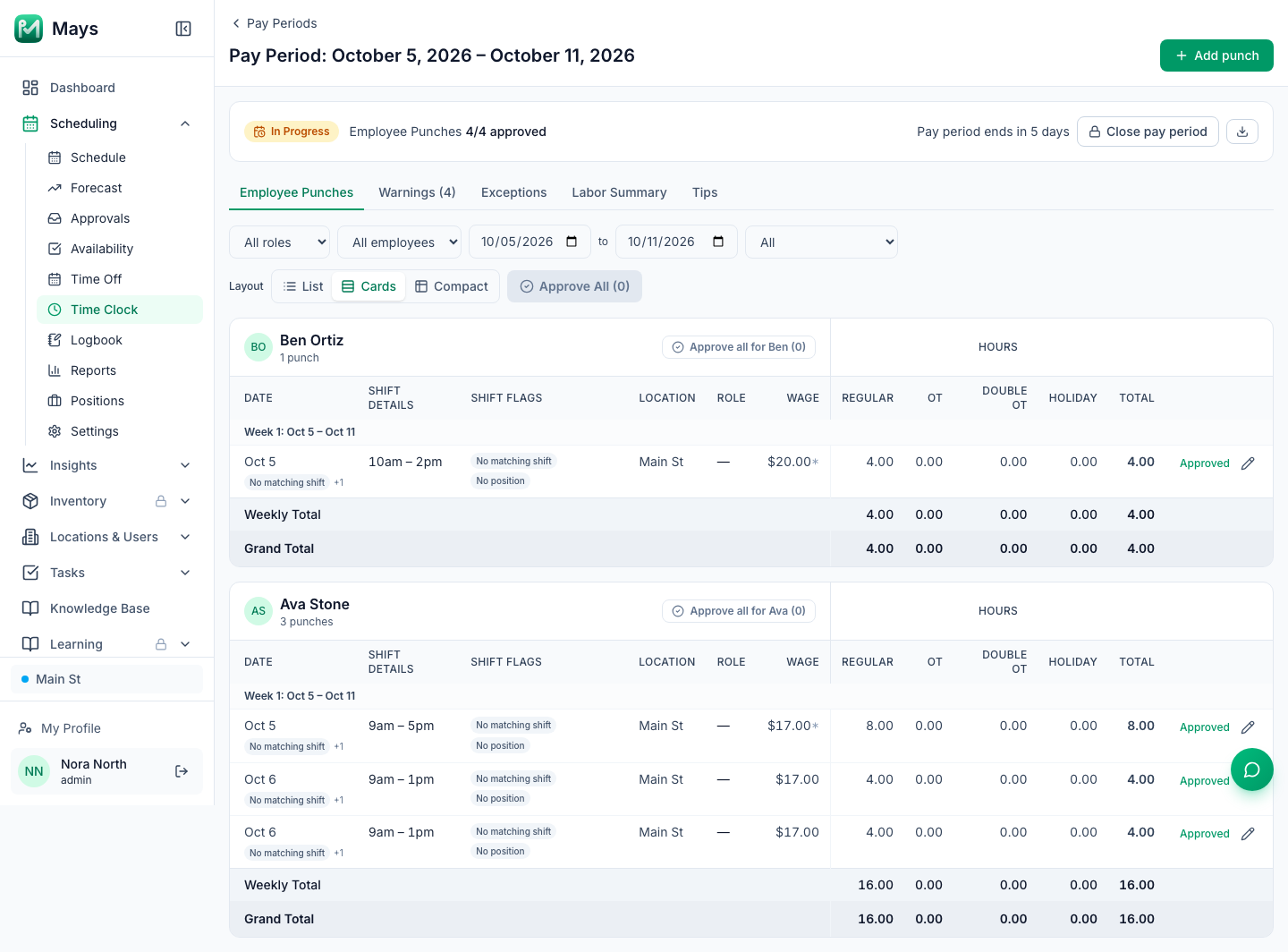
Cards | One card per employee, grouped by week, with each break on its own line, Shift Flags such as Late, Early out, Outside geofence or a missed break, and hours split into Regular, OT, Double OT, Holiday and Total. Approve all for approves that person's punches. |
Compact | One line per employee with their hour totals — a quick check before payroll. |
Your layout choice is remembered in this browser.
Source tells you how the punch was made: Mobile (the app), NFC tag, Kiosk, Web (manual) (added by a manager), 7shifts or Imported. Variance is actual minus scheduled hours; red means the person worked longer than scheduled.
Add, fix or delete a punch
- To add a missing punch, click Add punch. Pick the Employee, set Clock in, Clock out and Break (min), add Notes if you like, and click Add punch. Clock in starts at the current time at the location; on a past period it starts at 9:00 AM on the period's last day instead, so check the date.
Times in the window are the location's — the window says which time zone, for example Times are on the location's clock (EDT). — wherever you are.
- To fix one, click the pencil. For a punch that's still open the window is called Set punch-out. It also shows the breaks taken and, if your location asks, the employee's answer about their breaks. Click Save.
- To delete one, click the bin in the List layout and confirm Delete this punch? This cannot be undone.
The employee gets a notification each time: Time punch added, Time punch edited or Time punch removed.
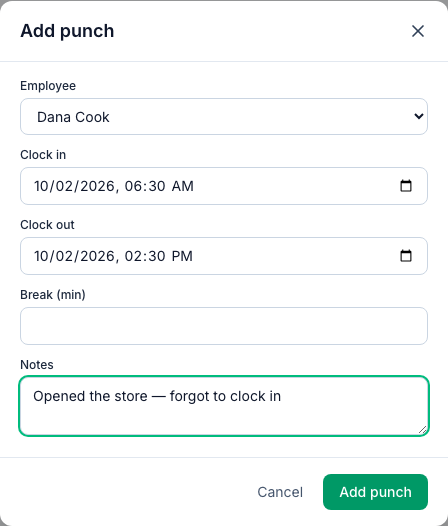
A punch you add shows Web (manual) as its source and a No matching shift warning, because it isn't tied to a scheduled shift. It takes the position of the person's shift at that location that day — shown as their Role — or, if they had no shift, no position: the row says No position where the role would be. It saves their wage the same way a clock-in does; with no position, that's their own hourly wage or else their main position's wage (see Positions and wages).
Approve punches
Click Approve on a row, or Approve All to approve every finished punch that matches your filters. Approved punches show Approved; the employee is told their punches were approved. There's no un-approve.
Approve All skips automatic clock-outs. When a location closes forgotten punches automatically, the clock-out time is the cut-off, not when the person actually left. Those rows carry an Auto clock-out badge and a yellow banner reminds you to check each one and correct it. Once you set a different clock-out time, the badge goes and Approve All includes the punch; if the cut-off was right, approve it on its own row. See Grace periods, rounding and auto-approval.
Warnings and exceptions
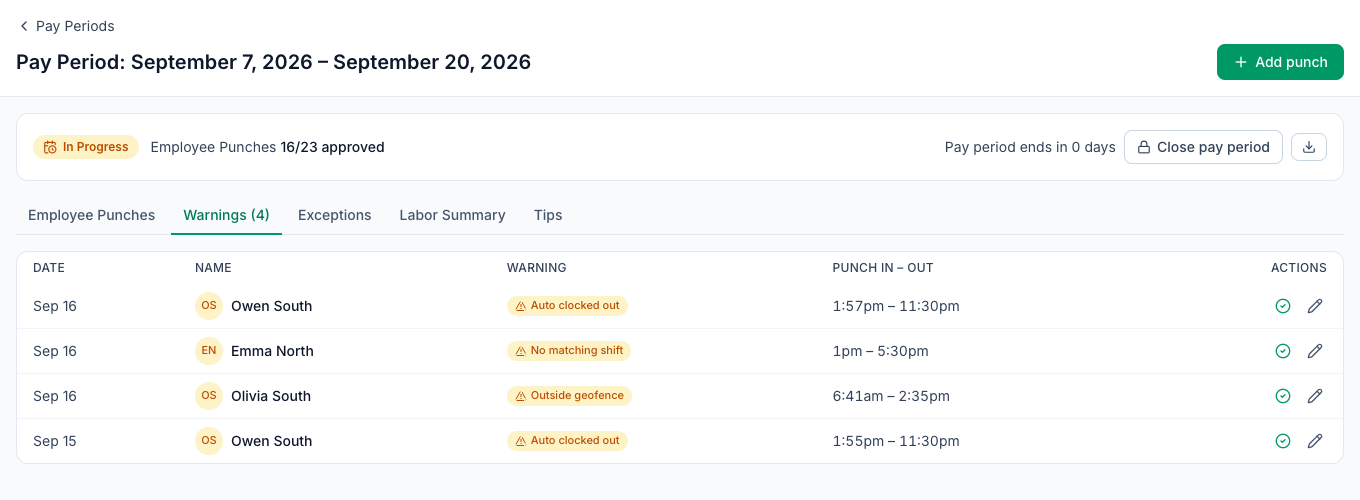
The Warnings tab lists punches that need a look:
Warning | Meaning |
|---|---|
Missing punch-out | Still open from an earlier day. Click Set punch-out to close it. |
No matching shift | Not tied to a scheduled shift — for example a punch you added, or someone who clocked in on a day off. |
Outside geofence | The phone was outside the location's radius at clock-in. See Punch verification and geofencing. |
Auto clocked out | Closed automatically at the location's cut-off time. |
No position | Neither the punch nor its shift has a position (only at a location that has positions). Its hours are paid at the person's own hourly wage, or else their main position's wage. |
Each row has approve and edit buttons.
The Exceptions tab lists missed, late or short breaks when your location tracks them, and the split-shift, spread-of-hours and reporting-pay premiums your location's rules pack or, with Labor law compliance's Premiums on, the law at its address sets — see Labor & compliance.
Labor Summary
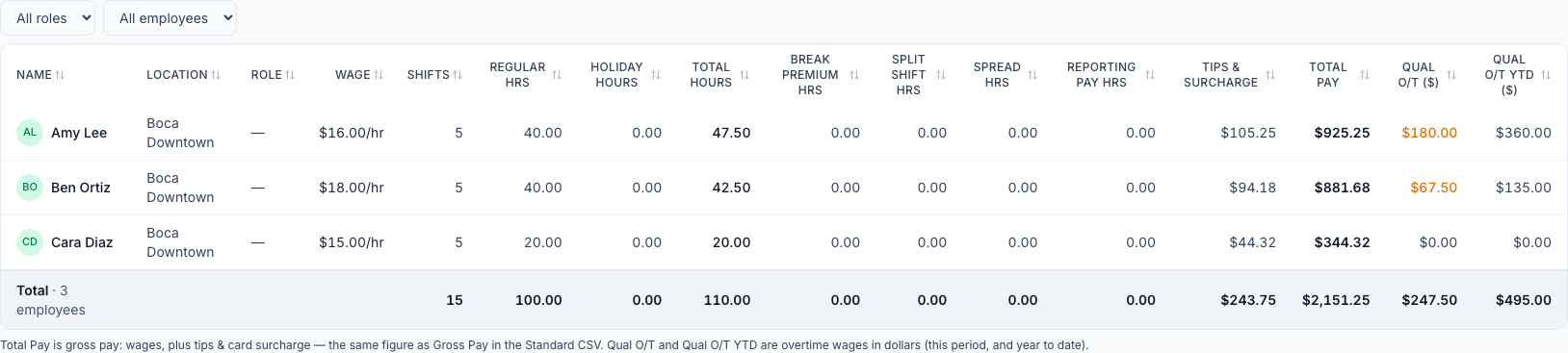
One row per employee with their Location, Role (the position they worked), Wage, Shifts (finished punches), Regular Hrs, Holiday Hours, Total Hours, the break, split-shift, spread-of-hours (Spread Hrs) and reporting-pay premium hours, Compliance Fees where the location costs them, Tips & Surcharge, Total Pay, Qual O/T ($) (overtime pay this period) and Qual O/T YTD ($) (overtime pay this year), plus a Total row at the bottom. Total Pay is gross pay — wages, plus tips and the card surcharge, plus compliance fees where the location costs them — the same figure as Gross Pay in the Standard CSV. Filter by role or employee and sort by any column. You need Build & manage native schedule to see this tab.
- Overtime follows your overtime settings in Scheduling → Settings → Workweek & overtime: Weekly OT threshold (hours) (40 by default — a blank box means 40, and 0 isn't accepted), OT multiplier, and the optional daily overtime, double time and 7th consecutive day. With Labor law compliance's Overtime law on at the location, the overtime law at its address applies too where it's more protective, or the location's own rules do — see Labor & compliance. It's counted per payroll week, and it's always calculated: Overtime warnings enabled only controls the warnings on the schedule, never pay here or in the exports.
- Twice a month and monthly pay periods: weekly overtime is counted per 7-day workweek, not per period. A workweek that spans two pay periods is counted as one week, and the overtime hours go to the period they were worked in. For example, with the week starting Monday, someone who works 10 hours on Monday Nov 30 and 10 hours a day Tuesday Dec 1 to Friday Dec 4 has 50 hours that week: Nov 16–30 shows 10 regular hours, and Dec 1–15 shows 30 regular and 10 overtime, because the hours past 40 were worked on Friday Dec 4. Daily overtime, double time and the 7th day are still counted per day. This applies to pay periods from Nov 1, 2026; earlier ones keep the figures they were paid with.
- Total Hours minus Regular Hrs is the overtime and double-time. Holiday Hours stays at 0.00.
- Pay: each punch saves the person's wage when they clock in — their own hourly wage, or else their position's wage (their main position's when the punch has none) — and a punch you add here saves it the same way. Wage is the rate the period was actually paid at, and the wages in Total Pay and Qual O/T come from the saved wages.
- A punch with no wage saved — an older punch made in Mays before it began saving the wage at clock-in in late September 2026, or one by someone whose wage was added later — is paid by the same order while the period is open, at the wage on file today. On the Cards layout its Wage shows with a \; hover over it to see why. *Closing the period saves those wages on the punches, so the figures you checked are the ones that close, and they stay if you reopen it. A period that was already closed keeps the figures it closed with: such punches stay at — and $0.00. Salaried staff and anyone with no wage set at all show — and $0.00 too; pay those from the hours in your payroll provider.
Close the pay period
- Make sure nobody is still clocked in on a shift in the period, and approve every finished punch. Mays won't close a period while anyone is on the clock in it (1 person is still clocked in on a shift in this period — clock them out before closing it.) or while any punch is unapproved, and tells you how many are left.
- Click Close pay period and confirm Close this pay period? Approvals, edits and deletes will be locked until it is reopened.
Closing also saves the wage on any punch that didn't have one (the \* wages on the Cards layout), so the closed period's pay is exactly what you reviewed.
A closed period shows Closed with who closed it and when, in the location's time zone. Adding, editing, deleting and approving are blocked until you click Reopen pay period — and so is clocking out on a shift in the period: the employee's own clock-out, the kiosk's and Force clock-out are all refused. The employee sees This shift is in a closed pay period, so it can't be changed. Ask a manager to reopen the period.; you see Pay period is closed — reopen it first. A shift belongs to the period of the day it was clocked in. To export for payroll, see Exporting payroll (CSV and Gusto).
Good to know
- The Exceptions tab updates after an edit. Adding, fixing or deleting a punch rechecks that day's breaks and premiums, and the Exceptions tab and its count show the result straight away.
- Hours count whether or not they're approved. Approval is your review step; totals and exports include every finished punch. Punches still open aren't counted.
- Only the last six periods are listed. Older ones are still there, just not in the list.
- Times are the location's. Every layout, the Warnings tab and the Add/Edit punch window show and take times in the location's time zone, not your computer's — so a manager traveling or at a head office in another state sees and enters the times the location's clock read.
- Employees see their own punches under My Hours in the app — see My Hours and estimated pay.