Every Mays organization starts with a 30-day free trial of all plan modules, then moves to Basic or Pro. Some companies have custom pricing instead (see below). Here's what each plan includes and what a locked module means.
Where: Settings → Billing in the web app (admins). The page is called Billing & Credits. It shows your current plan, and each plan card shows its current price and how many AI credits it includes.
The 30-day free trial
- The trial starts when you create your account. You don't need a credit card.
- Every module in the Basic and Pro plans is switched on for the whole trial. The paid add-ons aren't included.
- Each location starts with 1,000 AI credits to try the AI features. See AI credits.
- Settings → Billing shows Trial plan while you're on the trial, with the date your trial ends and how many days are left. Mays also emails your admins three days before the trial ends, and again once it has ended.
When the trial ends without a plan:
- modules that aren't in the always-included list below become locked;
- AI features pause until you subscribe.
Your checklists, schedules, people and other records aren't deleted. Pick a plan to get the locked modules back.
What each plan includes
Basic | Pro | |
|---|---|---|
Dashboard, Locations & Users, Tasks and checklists, Settings, Help, Insights, and Chat in the app | ✓ | ✓ |
Knowledge Base | ✓ | ✓ |
Automation & AI | ✓ | ✓ |
Devices (shared kiosk tablets) | ✓ | ✓ |
Integrations (Square, 7shifts and more) | ✓ | ✓ |
FTAR & Tip Pool | ✓ | ✓ |
Reviews | ✓ | ✓ |
Scheduling, including the time clock | ✓ | |
Inventory (see Inventory at a glance) | ✓ | |
Learning, and points and badges (see Creating training modules) | ✓ | |
Thermometers (see Setting up Govee thermometers) | ✓ | |
Disputes | ✓ | |
Catering | ✓ | |
AI Agents | ✓ | |
AI credits per location, every month | 5,000 | 25,000 |
The first row is always included, even when your trial has ended and you don't have a plan yet.
Plans are billed monthly. For current prices, check the plan cards under Settings → Billing.
Custom pricing and packages: Some companies have custom pricing set up by Mays. If yours does, Settings → Billing shows your company's own packages and prices instead of Basic and Pro. You can choose only among your company's packages, and each package sets its own monthly AI credits. Your current plan always stays visible, even if it is no longer on sale. Mays sets up and changes packages and prices for you.
Labor law compliance (minimum wage, overtime law, premiums, paid sick leave, food safety certificates, tip rules and minors' work rules) isn't part of Basic or Pro: it comes with Enterprise — ask your sales contact — and Mays switches it on for your organization. See Labor & compliance.
Add-ons
A few extras aren't part of any plan. Each is its own subscription, bought for one location at a time:
- AI phone receptionist answers your store's phone. Subscribe from the location's IVR (AI Receptionist) tab under Locations & Users → Locations. See AI phone receptionist.
- Call recording records the receptionist's calls that are put through to your staff. You can add it when you subscribe to the receptionist. See Call recording for the receptionist.
- Digital signage plays your images and videos on your TVs, charged per screen. Subscribe from Signage. See Digital signage.
The free trial doesn't include add-ons.
Locked and hidden modules
A module your plan doesn't include still shows in the sidebar with a small lock next to its name. Opening it shows "… isn't included in your plan" and an Upgrade plan button, which takes you to Settings → Billing.
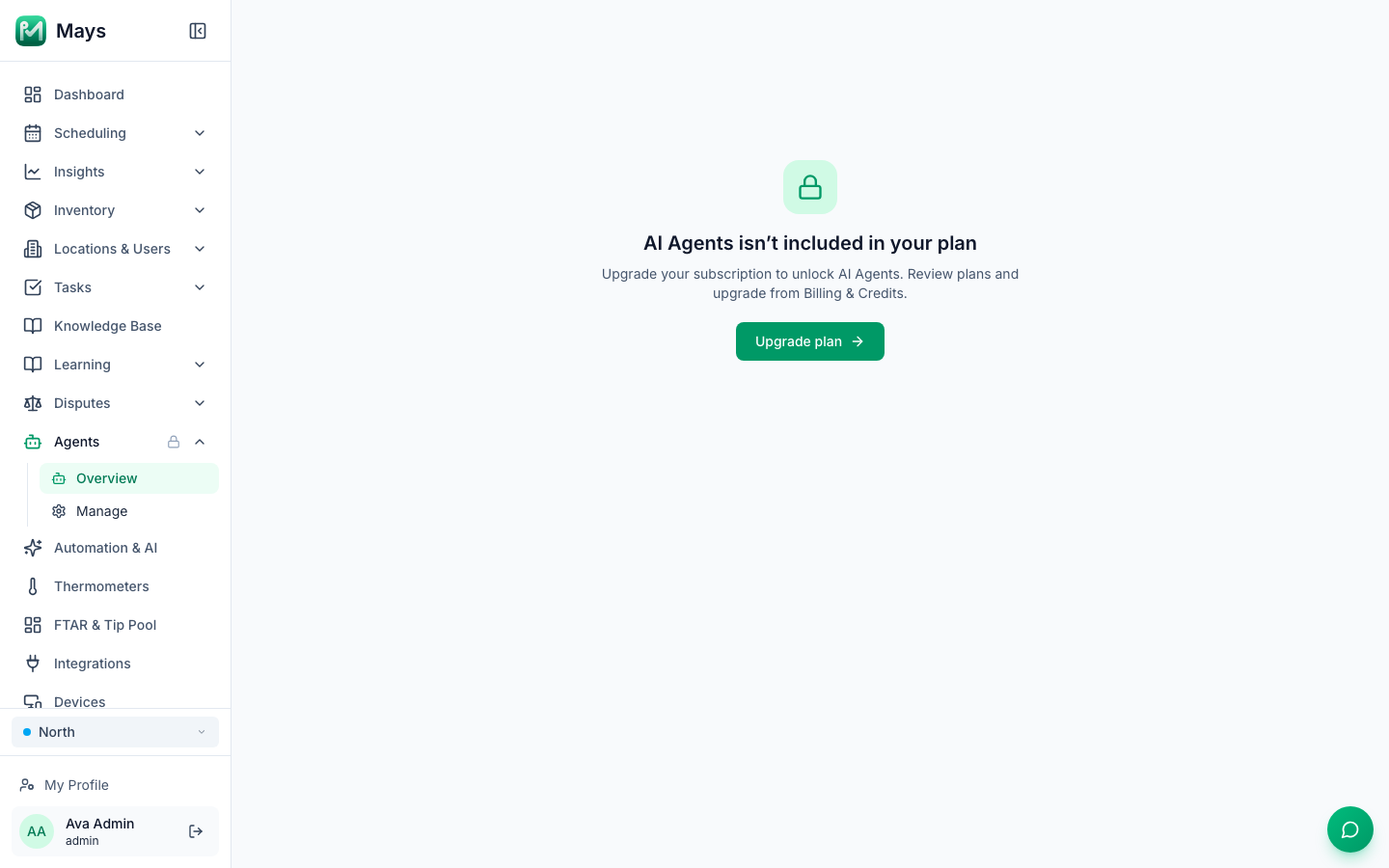
A module that Mays has turned off for your organization doesn't appear in the sidebar at all. If you open one from an old link, you'll see "… isn't available" instead. Write to support if you think it should be on.
Features per location
Each location's package decides which features it has. A location that Mays hasn't given its own package has your organization's plan.
- If you manage several locations, you'll see a feature when any of them has it, and inside it only those locations.
- A location without it shows Not in this location's package when you pick it in the location switcher. Below the message there's a button for each of your locations that has the feature: click one to switch there.
- If none of your locations has it, the feature is off for you. On the web it shows the lock and "… isn't included in your plan" (see above). In the Mays phone app it doesn't appear at all, and Mays refuses it for you, including your own items in it. For example, with no location that has Scheduling, there's no Schedule tab: no shifts, clock-in, time off, availability or pay in the app.
- In the Mays phone app, the location lists on screens like Schedule, Availability, inventory counts, Invoices and the Logbook only offer your locations that have the feature, and Clock in uses your first location that has Scheduling. If you have the feature at one location and open it for a location that doesn't (for example right after its package changed), the screen says Not in this location's package and Ask your admin to add it to this location's package.
- Clock-ins that are already open: clocking out and ending a break still work at a location whose package doesn't include Scheduling, as long as at least one location in your company still has it. A location that closes forgotten clock-ins automatically keeps doing that.
- Company-wide features: Knowledge Base, Automation & AI and Integrations work for your whole company. They're on when the package of any of your company's active locations includes them.
- Connected AI apps (ChatGPT, Claude and Mays AI in chat) look up a feature's details only at the locations that have it. A few general summaries, such as comparing locations, can still cover every location you manage.
- Automatic alerts and reminders for a feature, such as break and late clock-in alerts, run only for the locations that have it.
Mays sets each location's package. To add a feature to a location, write to Mays support. See Billing per location, payment methods and invoices.
Choose or change your plan
- Go to Settings → Billing.
- On the plan (or package) you want, click Upgrade.
- Stripe, our payment provider, opens a secure checkout. Enter your card details and confirm.
- If your organization already has a card on file, Mays asks you to confirm the payment with that card instead. Choose Use a different card to enter another one. Have a promotion code? Choose Use a different card — you can enter it on the next page.
- Have a promotion code from Mays? Click Add promotion code under the price, enter it and click Apply before you confirm. The checkout shows the discounted price and how many months it lasts.
- You come back to Billing & Credits, and the new plan's modules and monthly AI credits switch on. A receipt is emailed to your admins.
Free months from a promotion code: you still enter a card, but nothing is charged during the free months. Your plan's modules and monthly AI credits work as usual, and the credits refill every month. When the free months end, the plan's normal monthly price is charged to that card.
After you subscribe, Manage Subscription at the top of the page opens your billing account on Stripe. There you can update your card and see past invoices. See Billing per location, payment methods and invoices.
Already paying for a plan? Click Upgrade or Downgrade on the plan you want and confirm. There's no checkout: Mays changes the subscription you already have straight away. Stripe adds the prorated difference for the rest of the billing period to your next invoice, or credits it when you move to a smaller plan. Cancelling? Write to Mays support.
Is your organization billed per location? Then Mays sets your plan level, so the plan cards have no Upgrade buttons. Contact support to change plans. Each location can also have its own package, which Mays sets; the location's Billing & Credits tab shows it. See Billing per location, payment methods and invoices.
On the Enterprise annual plan? Settings → Billing shows your Enterprise plan instead of the plan cards and the trial notice. See Paying for the Enterprise annual plan by ACH, wire or Zelle.
When Mays changes your plan: with one bill for the organization, you change a paid plan yourself with Upgrade or Downgrade above; if Mays sets your plan before you subscribe, its monthly AI credits start once you subscribe. With billing per location, a location that already pays keeps its current package (its price and its monthly AI credits) until it's changed on that location's Billing & Credits tab. Locations that subscribe after the change get the new package.
Good to know
- Only admins can see Settings. You need the Edit organization settings permission. See Roles and permissions.
- Organization billing needs Edit organization settings. Choosing or changing the plan, buying credits for all locations and Manage Subscription all need it, and admins have it by default. Anyone else who opens Settings → Billing sees the plan and balances with an Ask an admin note instead of those buttons. A location's managers can still pay for and buy credits for their own locations on the location's Billing & Credits tab. See Billing per location, payment methods and invoices.
- Mays can change which modules a plan includes. The lock icons in your sidebar always show what your locations have right now.
- Questions about your bill? See Getting help and support tickets.