The knowledge base is where your SOPs, recipes, policies and training material live — folders of articles and documents. Admins and managers build it on the web; everyone reads and searches it in the Mays app.
It's in the Basic and Pro plans (and the free trial). On the web it's Knowledge Base in the sidebar; in the app it's the Knowledge tab (KB on Android).
How it's organized
- Folders sit at the top level, and can have folders inside them.
- Articles — pages you write in Mays, with headings, lists, pictures, tables, links and YouTube videos.
- Documents — files you upload: PDF, Word (DOCX), TXT, CSV, Markdown and pictures (JPG, PNG, WebP, and iPhone HEIC/HEIF photos), up to 50 MB each.
Articles and documents always go inside a folder.
Create a folder
- Go to Knowledge Base and click Folder.
- Type the Folder name and click Create.
- A new top-level folder starts Private — only you and your admins can see it — so the Share window opens straight away. Choose who can see it (see Who can see what below) and click Share. Close the window when you're done.
A folder you create inside another folder has the same access as that folder.
Write an article
- Open a folder and click Article.
- Enter a Title (required) and a short Summary — the summary shows on the article's card and helps people find it when they search in the app.
- Write the article under Content. The toolbar has headings, bold and italic, lists, quotes, alignment, Insert Image, Insert Link, Embed YouTube Video (paste the video's link) and Insert Table.
- Click Create & Index for AI.
The article is live as soon as you save it — there are no drafts. To change it later, click it and click Update & Index for AI. Index for AI means the AI Assistant in the app can use the article to answer questions. See AI answers from your knowledge base.
Upload documents
- Open a folder and click Upload.
- Drag files onto the window, or click browse to pick them. A file of another type is refused with a message naming the types you can upload.
- Click Upload (the button shows how many files), then Done.
Mays reads each document in the background so it can be searched and used by the AI Assistant. Click a document to preview it: PDFs, pictures and text files open in the browser; for other files use Download or New tab.
Admins can also bring files in from Dropbox or Google Drive with the buttons at the top. See Importing from Dropbox or Google Drive.
Adding from ChatGPT or Claude
If your organization lets AI apps make changes, you can also upload documents or have the AI app write an article from ChatGPT or Claude ("Add these recipes to the knowledge base", "Write our closing SOP and put it in Training"). What an AI app adds doesn't go live straight away: it waits in a folder called Pending review (AI uploads), which only admins can see. Your team can't open it, the AI Assistant doesn't answer from it, and the person who added it can't see it there either.
Admins publish it: open Pending review (AI uploads), check each item, and Move to... the folder it belongs in — or ask the AI app "What's waiting for review?" and then "Publish them", which moves each item to the folder it was added for and makes the person who added it its owner. To get rid of something, delete it. Don't share the Pending review folder: while it's shared, AI apps can't add anything. See Upload invoices and documents.
Organize
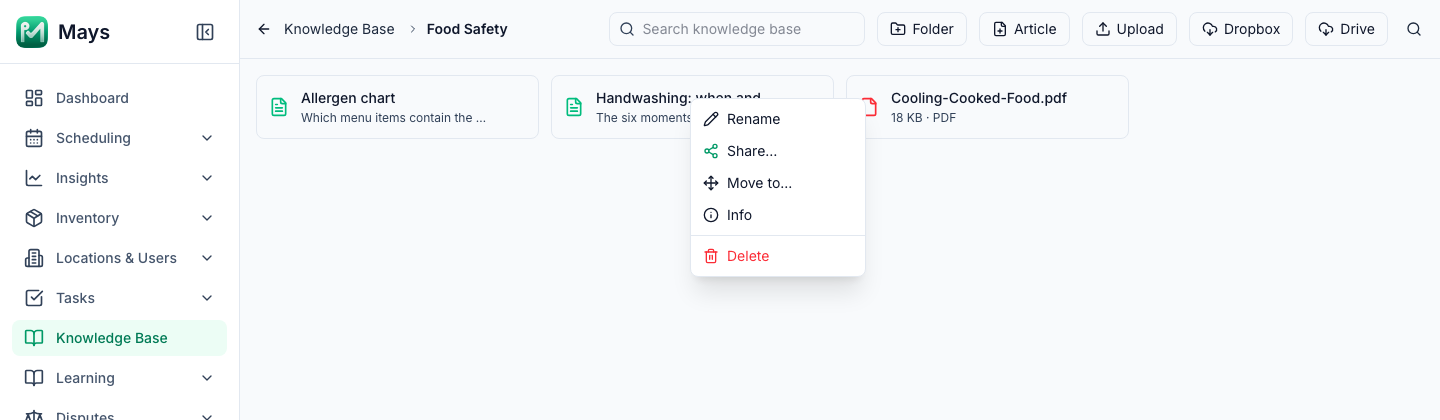
Right-click a card, or hover and click ⋮:
- Rename — the new name shows straight away.
- Share… — change who can see it.
- Move to... — pick another folder. A folder can't go inside itself or one of its own folders; Mays says so and leaves it where it was.
- Delete — asks once, then deletes for good (there's no trash). Deleting a folder deletes everything in it: the folders inside it, at every level, and all their articles and documents, including the uploaded files. The AI Assistant stops answering from them straight away.
The search box at the top finds folders, articles and documents by name in the folder you're looking at.
Who can see what
Who | Can do |
|---|---|
Admins | See and edit everything. Can share with the whole organization or with a role, such as Managers. |
Managers | Create folders, articles and documents for their own locations. Can share with one of their locations or with a specific person. |
Employees | Read what's shared with them, in the app. |
In the Share window you choose who — Everyone in org, A location, A role or A specific person — and whether they Can view or Can edit, then click Share. People with access lists everyone who has it. More in Who can see what in the knowledge base.
In the app
The Knowledge tab (KB on Android) shows the folders you have access to. Tap a folder to open it, then an article to read it or a document to open it right in the app. YouTube videos in an article play when you tap them.
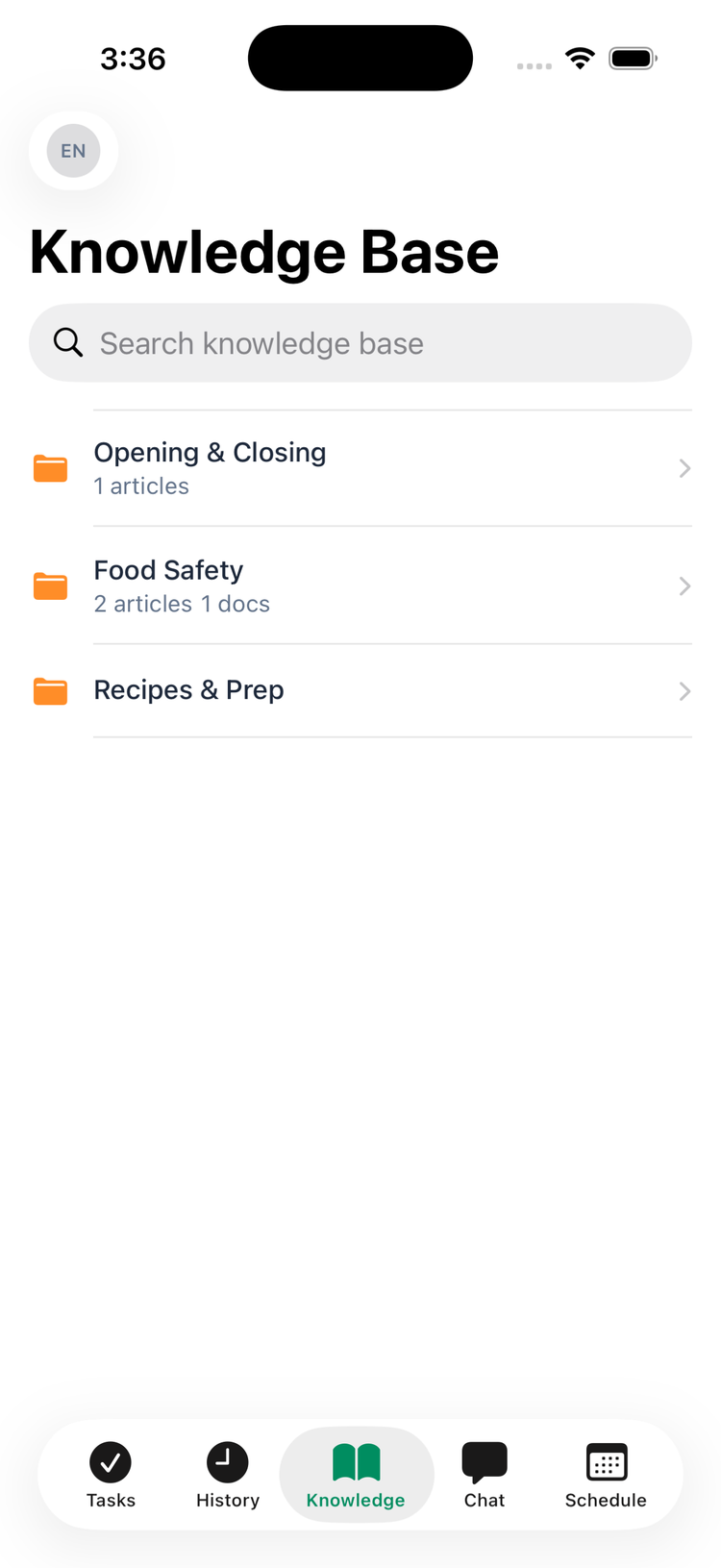
- Search (at the top) looks through folder names, article titles and summaries, and document names across the whole knowledge base — type at least two letters.
- The app is for reading: articles and documents are added and changed on the web.
- You need a connection to open the knowledge base.
- To send an article to someone, open a chat, tap the attachment button and choose Article.
Good to know
- Not in your plan? On the web, Knowledge Base shows a lock and an Upgrade plan button. The app tab stays, but shows No content yet.
- Search on the web only matches names in the folder you're in. To find something inside your articles and documents, ask the AI Assistant in the app's Chat tab — it answers from your knowledge base.
- Empty folder in the app? It hasn't been shared with you, or nothing's been added yet — ask your manager.
- Turn articles into quizzes. On the Pro plan, admins can have the AI write a short training quiz from your articles and documents. See Creating training modules.